Clipboard and copy/paste
Paste into the terminal, select and copy from it, write to the iOS clipboard from the host with OSC 52, and work around wrapped-code copy issues.
Copy and paste between iOS and a remote terminal looks simple but actually crosses three boundaries: your fingers, the iOS clipboard, and the host. Moshi tries to make each direction feel like the desktop equivalent of Cmd-C and Cmd-V.
Paste into the terminal
Several gestures all map to "paste from iOS clipboard at cursor":
The default double-tap binding can be reassigned in Gestures, and the toolbar paste button can be hidden or reordered in Settings -> Input.
Select and copy from the terminal
Long-press anywhere in the terminal to start a selection. Drag the handles to extend the selection, then tap Copy in the iOS context menu. The text lands on the iOS clipboard.
When the selection lands on a URL, the menu adds two shortcuts: Open launches it in Safari, and Copy Link copies just the address — handy for the long GitHub paths agents like to print.
For long output that has scrolled past, prefer tmux copy mode instead — see Scrolling. Selecting huge regions on a phone screen is awkward, and copy mode also lets you search.
Remote → iOS clipboard with OSC 52
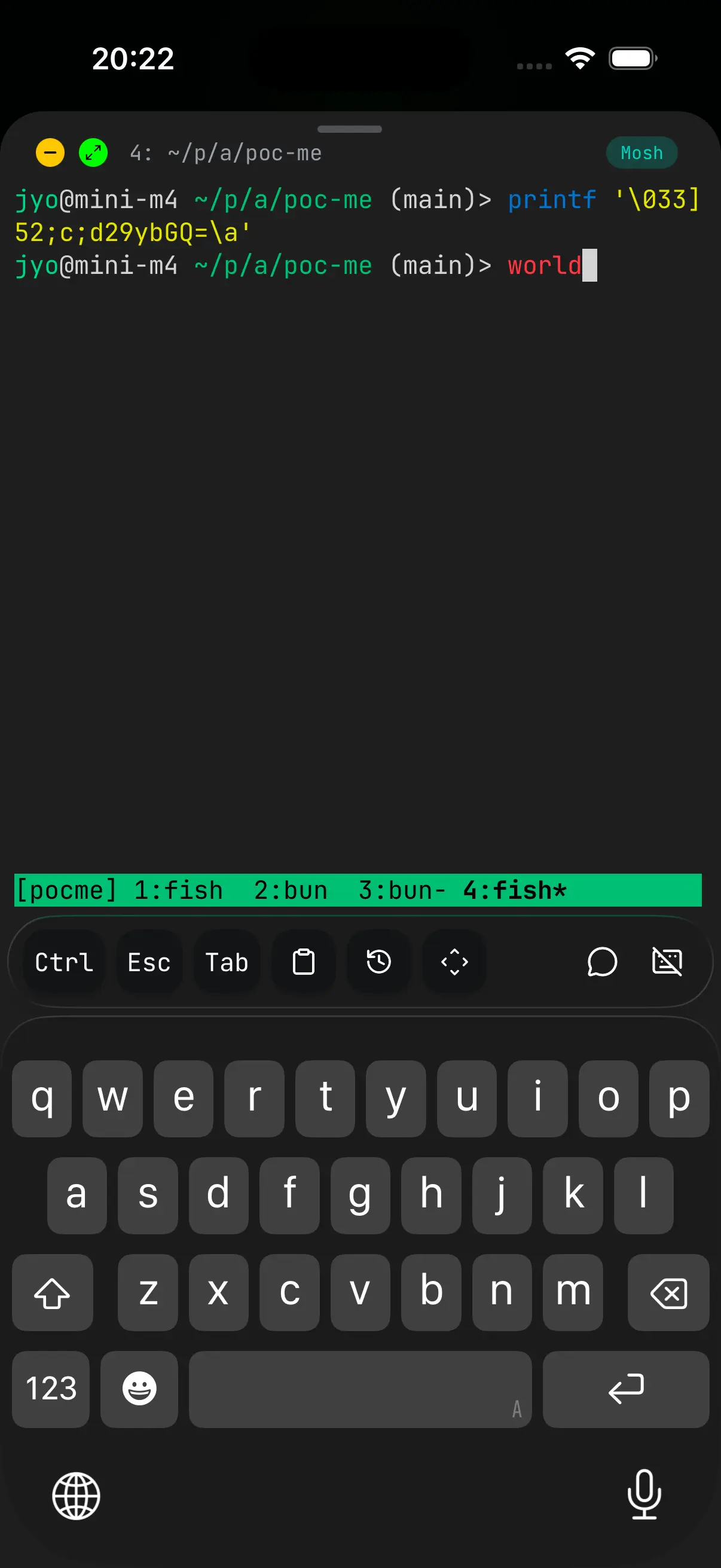
Moshi understands the OSC 52 escape sequence, so the remote shell can write directly to the iOS clipboard without you selecting anything:
$printf '\033]52;c;%s\033\\' "$(echo -n 'hello' | base64)"
That command puts hello on your iPhone clipboard. It works under SSH and mosh directly. Inside tmux you need one extra line so tmux passes the escape through instead of swallowing it:
$set -g set-clipboard on
This is the right primitive for "give me back a generated URL", "copy this token to my phone", or "send me the failing test name" without leaving the keyboard.
Copying more than fits on screen. Usually the text you want is already in your agent TUI — a plan it wrote, a long answer, a block of generated code — too big to scroll back and select by hand. Ask the agent to write it to a file, then copy that file to your phone with OSC 52:
$printf '\033]52;c;%s\033\\' "$(base64 < /tmp/clip.txt | tr -d '\n')"
Better still, fold both steps into one ask — "write the plan to /tmp/clip.txt and copy it to my clipboard" — and the agent writes the file and emits the sequence itself. The whole thing lands on your iPhone clipboard in one shot, no selection handles. tr -d '\n' keeps the base64 on a single line so the escape sequence stays intact, and inside tmux you still need set -g set-clipboard on from above. For payloads large enough to hit a terminal or tmux OSC 52 cap, have the agent upload it with Files and linking and copy the short HTTPS URL instead.
When copied code has broken lines
If you select a code block from an agent's output and paste it into a desktop editor, lines often arrive hard-wrapped at the terminal width. The cause is output-time wrapping: the agent rendered the code at the visible terminal width, and what scrolled into the buffer was already broken. Manual selection, the iOS share sheet, and tmux copy mode all preserve those wraps because the breaks are real characters in the buffer.
Two practical workarounds:
- Widen the terminal first (rotate to landscape, smaller font, or run on iPad) so the agent emits unwrapped lines, then copy.
- Have the agent emit the raw block as OSC 52 after rendering it. Most coding agents accept a small skill or instruction along the lines of "after every code block, additionally emit the raw block via OSC 52". The on-screen render stays unchanged; the iOS clipboard receives the clean version automatically.
Paste images, not text
When the thing you want to send is an image — a screenshot, a photo of a whiteboard, an annotated diagram — don't fight the text clipboard. Moshi has two purpose-built flows instead:
- Image paste behaves like Ctrl+V in a TUI such as Claude Code or Codex: pick a screenshot, photo, PDF, or log, and Moshi SCPs it to the host under
~/.moshi/uploads/so the agent gets a regular local file path to open. - Files and linking uploads the file instead and hands back a short, expiring HTTPS URL you can paste into the prompt, a GitHub issue, Slack, or a desktop browser — reach for it when you want a shareable link rather than a path on the host.
Copying private keys
If you copy a private key out of Moshi, iOS requires biometric confirmation first — a deliberate friction step. Avoid leaving private keys in clipboard history, shared notes, or cross-device clipboards. See Security and sync for the rest of the credential model.