Moshi Agent Hooks: Inbox, Live Activities, Usage, and Apple Watch
How Moshi turns coding-agent noise into a phone and watch workflow you can scan, answer, and trust
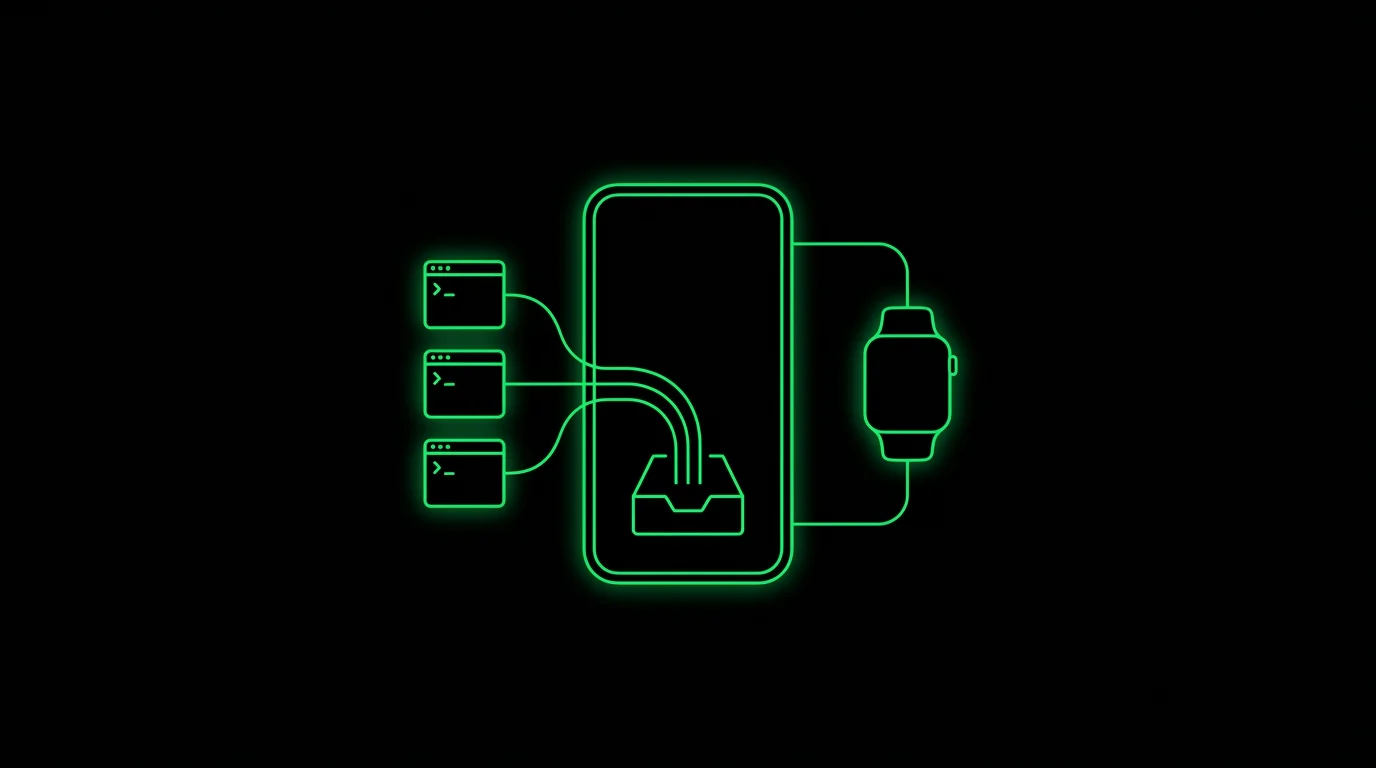
TL;DR: Install moshi-hook on your host, pair it with Moshi, and let Claude Code, Codex, OpenCode, Cursor, Kimi, and Qwen report approvals, questions, turn completions, and usage windows into Moshi. The result is an inbox on iPhone, Live Activities on the lock screen, usage rings for rate limits, and native Apple Watch actions.
The original Moshi workflow was simple: keep a terminal alive on your Mac with mosh and tmux, then use push notifications when a long task finishes.
That still works. But the newer workflow is tighter: Moshi now has an agent event layer. Instead of asking every project to remember a webhook curl, you run a small host daemon named moshi-hook. It installs supported agent hooks, watches local agent activity, and sends structured events to Moshi.
That changes Moshi from "terminal you can reach from your phone" into "control surface for the agents running on your machines."
What moshi-hook does
moshi-hook runs on your Mac, Linux, or WSL-on-Windows host. It pairs with the token from Moshi, installs Moshi-owned hook entries into supported agent config files, and keeps a local service running so agent events can reach your phone.
Today it supports:
- Claude Code
- Codex
- OpenCode
- Cursor
- Kimi
- Qwen
The exact event payload differs by agent, but Moshi normalizes the important parts:
- Approval requests
- Agent questions
- Turn completions
- Tool errors
- Session and project status
- Usage and rate-limit snapshots where the agent exposes them
For the complete install commands and diagnostics, keep Agent hooks and Live Activities open while setting this up.
Install on macOS
Open Moshi, go to Settings -> Agent Hooks, and copy your pairing token. Then run this on the host where your agents run:
brew tap rjyo/moshi
brew trust rjyo/moshi
brew install moshi-hook
moshi-hook pair --token <token from Moshi>
moshi-hook install
brew services start moshi-hook
Check the daemon:
moshi-hook status
moshi-hook logs -f
moshi-hook usage --sync
If macOS Keychain blocks the service in a headless setup, pair with file storage instead:
moshi-hook pair --token <token from Moshi> --store file
The troubleshooting guide covers that and other failure modes in Agent events do not appear.
Install on Linux (including WSL)
Same steps on a bare-metal Linux box, a VPS, or WSL on Windows. Enable OpenSSH in the distro if needed, then install the binary, pair it, install the hooks, and run the service:
curl -fsSL https://getmoshi.app/install.sh | sh
moshi-hook pair --token <token from Moshi>
moshi-hook install
moshi-hook serve
For a permanent machine, put moshi-hook serve under systemd, supervisord, tmux, or whatever you already use to keep long-running host processes alive.
The Inbox is the new front door
Before hooks, your phone usually opened straight into a terminal session. That is still useful when you need the shell, but it is not always the fastest way to decide what needs attention.
The Moshi inbox shows one active row per agent session. New events update the existing row instead of piling up duplicate notifications. Pending approvals float to the top. Project and host grouping stays visible, so you can tell whether the question came from the Mac mini in your office, the Linux box in your homelab, or a cloud VM.
Read the dedicated guide at Agents & Usages for the exact behavior.
Live Activities keep the current turn visible
When Live Activities are enabled in Settings -> Agent Hooks, active turns can update the lock screen and Dynamic Island. Approval and error events can also trigger visible push notifications; quieter events can update only the inbox and Live Activity.
The point is not to create more interruptions. It is to keep the current state visible without reopening the terminal every few minutes.
Moshi also includes a demo Live Activity button in settings, so you can confirm the system surface works before waiting for a real agent event.
Usage rings tell you when to pause
Agent usage is no longer hidden in scattered CLI output. The Usage tab shows the rate-limit windows your agents are burning:
- Claude Code 5-hour and 7-day windows
- Codex variable windows
- OpenCode provider windows
Each account card shows the agent, account label, host, ring progress, and last-updated time. Pull to refresh forces an immediate update; otherwise values refresh roughly every minute while moshi-hook is running.
Some agents also expose context remaining. Moshi shows that as a small ring in the inbox and on Apple Watch. When it drops low, ask the agent to summarize before continuing.
Apple Watch is not just mirrored notifications
Moshi ships a native watchOS companion. It can show the inbox, usage rings, and complications without opening the phone.
With Pro, you can approve, deny, or answer from the wrist. Without Pro, the watch is still useful as a glanceable view of what is running and which quota window is getting tight.
The watch does not open a shell, attach to tmux, run dictation, paste images, or show scrollback. That boundary is deliberate: the watch is for fast triage and small decisions; the phone is for full terminal work.
See Apple Watch for setup and limitations.
How this changes the daily workflow
The older Moshi setup looked like this:
- Open Moshi.
- Attach to tmux.
- Check each window.
- Read output until you find the blocked agent.
- Type or dictate an answer.
The hook-based setup looks like this:
- Start agents in tmux as usual.
- Walk away.
- Let Moshi surface approvals, questions, completions, and usage.
- Answer small decisions from the inbox or Apple Watch.
- Open the terminal only when you need full context.
You still want tmux for process lifetime and host-side scrollback. You still want Tailscale or another VPN for private reachability. Hooks do not replace the terminal; they make the terminal less noisy.
Image paste fills the visual gap
Agent work is not only text. Sometimes the right answer is a screenshot of a UI bug, a photo of a whiteboard, or a design image from your clipboard.
Moshi's Image paste sends an image into an agent prompt as a short URL without writing it to the host filesystem. With Voice and dictation chat mode enabled, you can dictate a prompt, attach an image, review the whole message, and send it as one turn.
That matters on mobile because the normal desktop routine of screenshot, save, drag, upload, and clean up is too much friction.
When plain webhooks are still enough
You do not have to use hooks for every machine. Plain webhook notifications still make sense for:
- Cron jobs
- Deploy scripts
- Test runners
- One-off shell scripts
- Hosts where you do not want to install agent integrations
Use Push notifications and webhooks for that simpler path. Use moshi-hook when you want structured agent events, inbox rows, Live Activities, usage windows, and watch actions.
Related setup
- How to Use Claude Code on iPhone — the full Tailscale, mosh, tmux, and Moshi stack
- My Daily Moshi Workflow — organizing tmux windows for agents and dev servers
- Using Your Mac as a Remote Endless Working Agent — keeping a Mac ready for remote work
- Agent hooks and Live Activities — install commands, supported agents, and diagnostics
- Agents & Usages — how Moshi groups events and tracks limits
- Apple Watch — watch actions, usage complications, and setup