
Using Your Mac as a Remote Endless Working Agent with Moshi
The complete guide to running an always-on AI agent on your Mac and controlling it from your iPhone
TL;DR: Set up your Mac with mosh + tmux, then add moshi-hook for agent events. Connect from your iPhone with Moshi. Approvals, completions, Live Activities, usage rings, and Apple Watch actions keep the agent reachable from anywhere.
The Setup
Your Mac sits on your desk running an AI agent in a tmux session. When you step away, the agent keeps working. When it needs input, moshi-hook sends the event to Moshi's Agents feed, Live Activity, push notifications, and Apple Watch. Tap into the terminal only when you need full context.
┌─────────────────────────────────────────────────────────────────┐
│                        Your Mac                                 │
│  ┌────────────────────────────────────────────────────────────┐ │
│  │                     tmux session                           │ │
│  │  $ claude                                                  │ │
│  │  > Implementing authentication...                          │ │
│  │  > Need permission to run: npm install bcrypt              │ │
│  │  > [Waiting for approval]                                  │ │
│  └────────────────────────────────────────────────────────────┘ │
└─────────────────────────────────────────────────────────────────┘
                             │               │
           Push notification │               │ Tap approve, agent continues
                             │               │
                             ▼               ▲
                ┌────────────────────────────┐
                │       Your iPhone          │
                │     Moshi app              │
                └────────────────────────────┘
This guide covers:
- Mac setup — Prevent sleep, enable remote login, install mosh + tmux
- Network — Tailscale for secure access from anywhere
- iPhone setup — Moshi app, Agents feed, push notifications, voice input, image paste
- Background — Why mosh over SSH, alternative multiplexers
- Security — SSH hardening and why VPN beats port forwarding
Mac Setup
Your Mac needs to stay awake and accessible. Here's the configuration.
Prevent Sleep
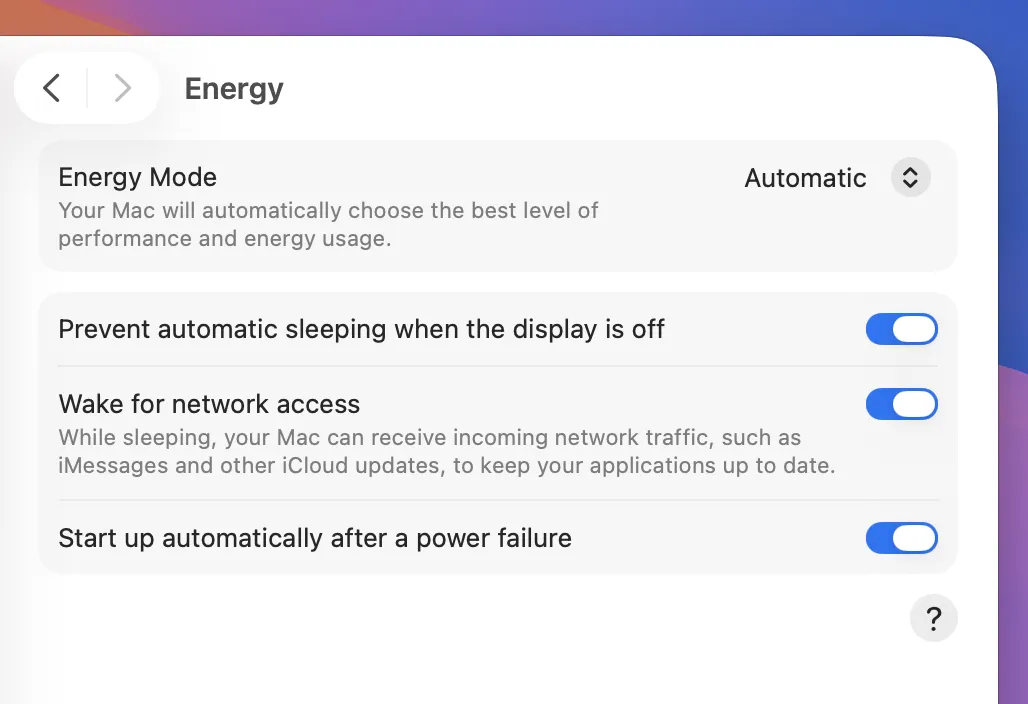
System Settings → Energy Saver (or Battery → Options on laptops):
- Prevent automatic sleeping when the display is off: Enable
- Wake for network access: Enable
- Start up automatically after a power failure: Enable (if available)
For headless Mac Minis, you can also disable display sleep entirely since there's no display.
Temporary Override with caffeinate
For one-off long sessions without changing system settings:
# Prevent sleep indefinitely (Ctrl+C to stop)
caffeinate

# Prevent sleep for 4 hours
caffeinate -t 14400

# Prevent sleep while a command runs
caffeinate -s claude
Enable Remote Login
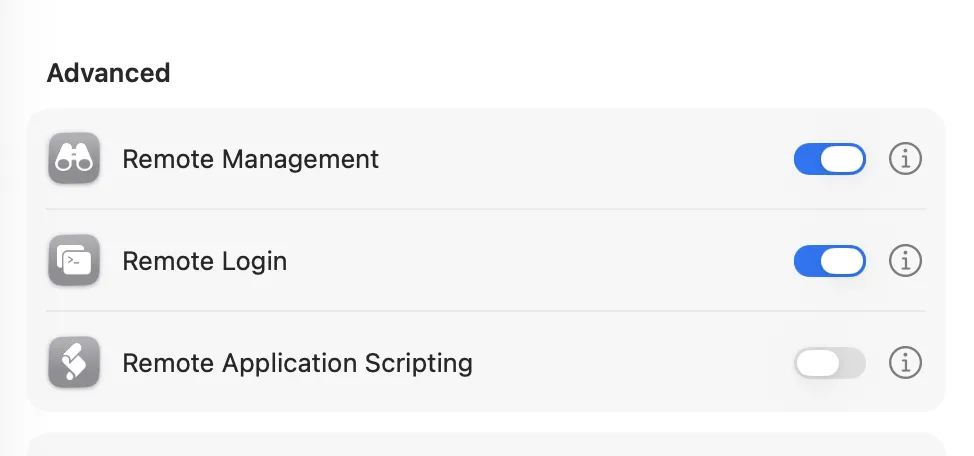
System Settings → General → Sharing → Remote Login: Enable
This enables the SSH server. Mosh uses SSH for initial authentication, then switches to UDP.
Install mosh and tmux
# Install Homebrew if needed
/bin/bash -c "$(curl -fsSL https://raw.githubusercontent.com/Homebrew/install/HEAD/install.sh)"

# Install mosh, tmux, and agent hooks
brew install mosh tmux moshi-hook
Terminal Multiplexer: tmux (Recommended)
tmux creates persistent terminal sessions that survive disconnections—essential for remote development.
Why tmux with mosh
- Persistence: Sessions survive network drops, phone sleep, and app switches
- Scrollback: Captures all output that mosh discards
- Multiplexing: Multiple windows and panes in one session
- Detach/attach: Start work on your laptop, continue on your phone
- Title propagation: Configurable titles that Moshi displays
Recommended Configuration
Create ~/.tmux.conf:
# Large scrollback buffer (default is 2000)
set -g history-limit 50000

# Enable mouse support (scrolling)
set -g mouse on

# Pass window titles to terminal (Moshi displays these)
set -g set-titles on
# Now it shows 1: Fixing auth... (your window title in tmux)
set -g set-titles-string "#I: #T"

# Start window numbering at 1 (Moshi displays from 1)
set -g base-index 1
setw -g pane-base-index 1
Apply changes:
tmux source-file ~/.tmux.conf
tmux Cheatsheet
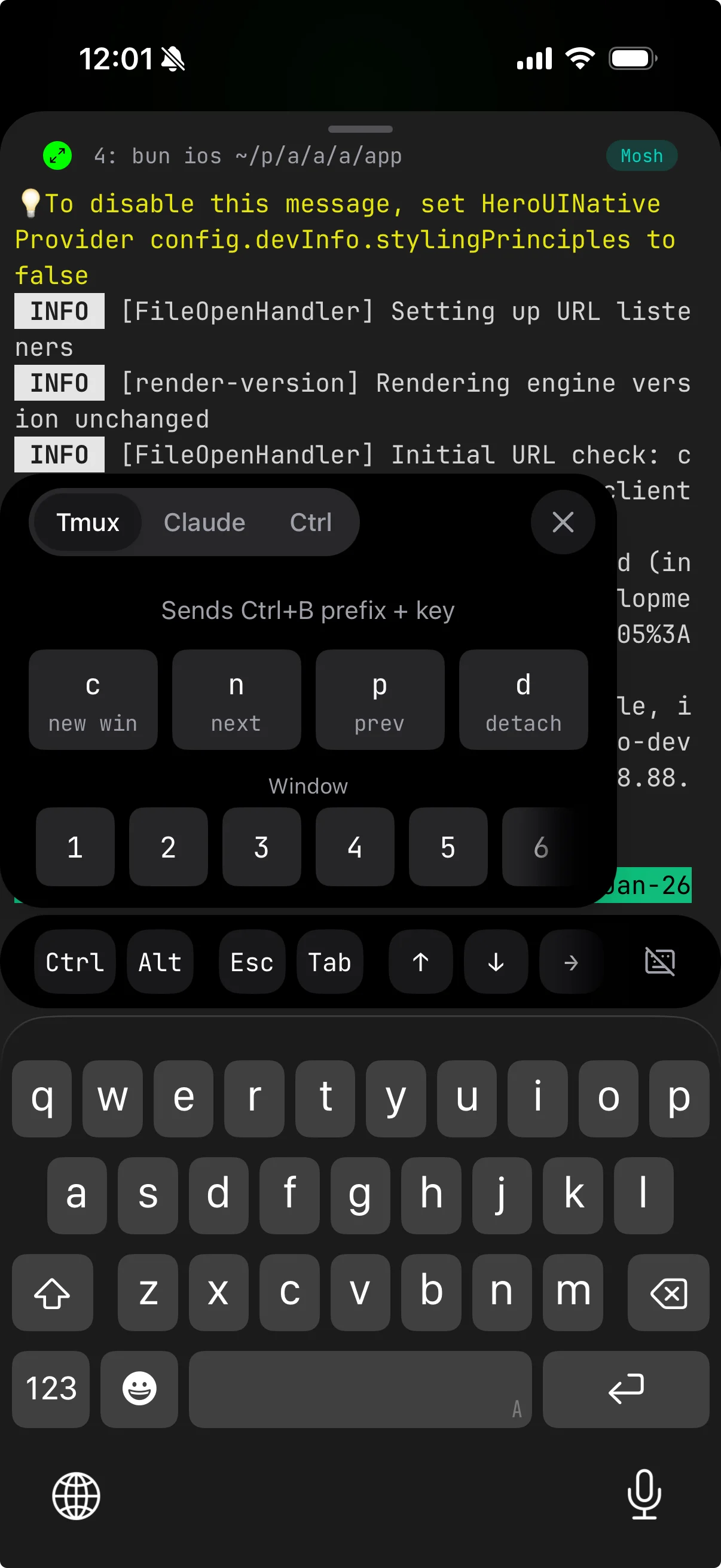
All commands use the default prefix Ctrl+B. Moshi has a dedicated Ctrl+B button and a tmux shortcuts panel for easy access. See the Moshi Keyboard Guide for details.
Sessions:
| Command | Description |
|---|---|
tmux new -s dev | Create named session |
tmux attach -t dev | Attach to session (Moshi can attach from the UI) |
tmux ls | List sessions |
Ctrl+B, d | Detach from session |
Ctrl+B, $ | Rename session |
Windows:
| Command | Description |
|---|---|
Ctrl+B, c | New window |
Ctrl+B, , | Rename window |
Ctrl+B, n | Next window |
Ctrl+B, p | Previous window |
Ctrl+B, 0-9 | Switch to window by number |
Ctrl+B, & | Close window |
Network
Before you can connect from your iPhone, you need a way to reach your Mac from anywhere.
Tailscale (Recommended)
Tailscale creates a secure mesh VPN using WireGuard. Every device gets a stable IP that works from anywhere—home, office, coffee shop, cellular.
Why Tailscale:
- Zero configuration port forwarding
- Works behind NAT and firewalls
- Peer-to-peer (fast, no relay latency in most cases)
- Free for personal use (up to 100 devices)
Mac setup:
# Install Tailscale (CLI only)
brew install tailscale
# Or install from Mac App Store for the menu bar GUI

# Start and authenticate
sudo tailscale up --ssh

# Get your Tailscale IP
tailscale ip
# Example: 100.64.0.1
The --ssh flag enables Tailscale SSH—you can SSH using your Tailscale identity without managing keys. For Moshi's mosh connection, the host still needs normal SSH service available because mosh bootstraps by running mosh-server over SSH. The Tailscale guide and Mosh connection troubleshooting cover the edge cases.
iPhone setup:
- Install Tailscale from the App Store
- Sign in with the same account
- Your Mac's Tailscale IP now works from your phone
WireGuard (Self-Hosted or Router Built-in)
If you prefer self-hosting, WireGuard gives you the same protocol benefits with full control. Many routers (UniFi, pfSense, OpenWrt, ASUS with Merlin) have WireGuard built-in—check your router's VPN settings.
brew install wireguard-tools
You'll need to set up a WireGuard server (or use a VPS as a relay) and configure keys manually.
Surge / Proxies (Restricted Networks)
If you're in an environment with restrictive firewalls (corporate networks, some countries), you might need a proxy layer:
- Surge (Mac/iOS)
- Shadowsocks
- Custom SOCKS5/HTTP proxies
These can tunnel your mosh/SSH traffic through allowed ports (443, 80) when UDP is blocked.
iPhone Setup with Moshi
Moshi is the native iOS terminal built on mosh—purpose-built for AI agent workflows.
Initial Setup
- Install Tailscale from the App Store and sign in
- Install Moshi from the App Store
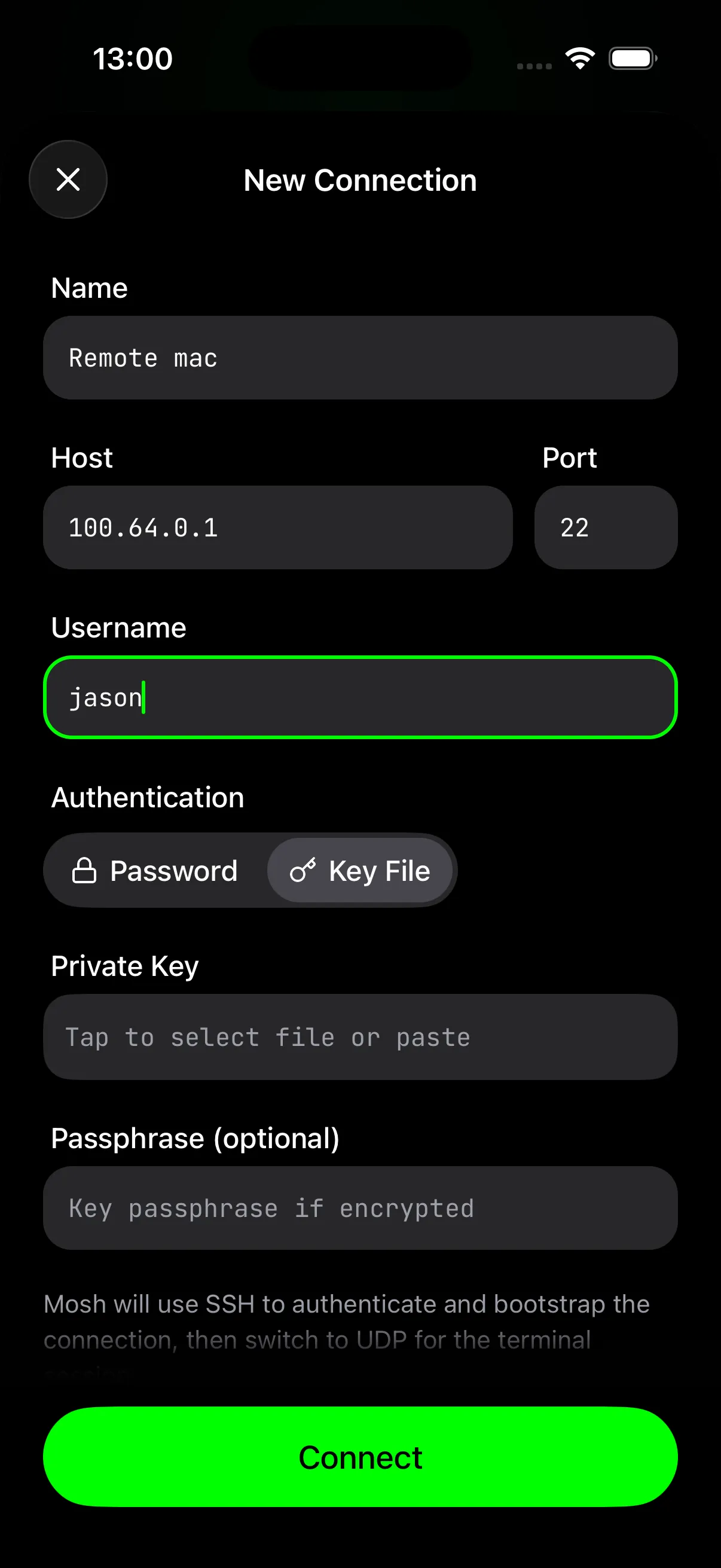
- Add your server:
- Host: Your Mac's Tailscale IP (e.g.,
100.64.0.1) - Username: Your Mac username
- Authentication: SSH key (stored securely on iOS, protected by Face ID if enabled)
- Host: Your Mac's Tailscale IP (e.g.,
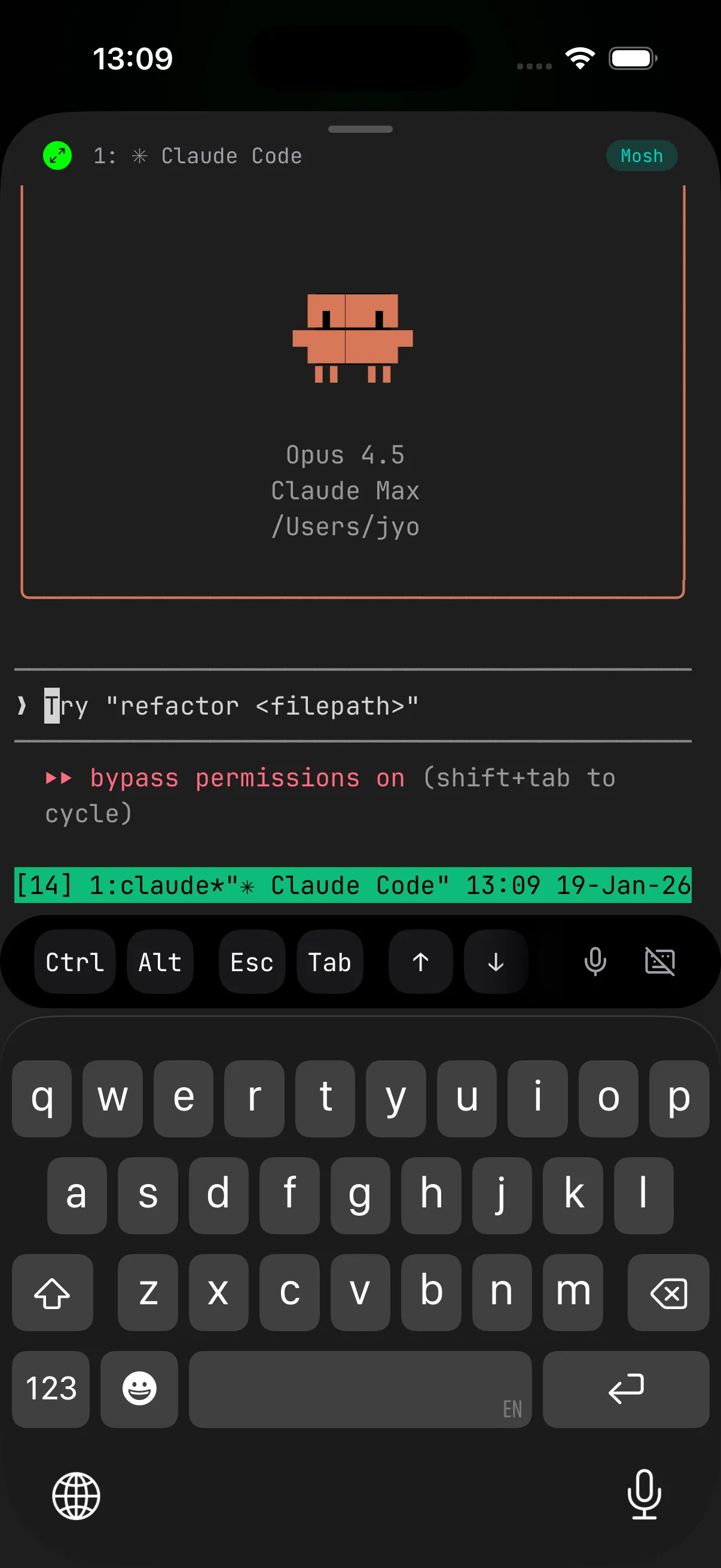
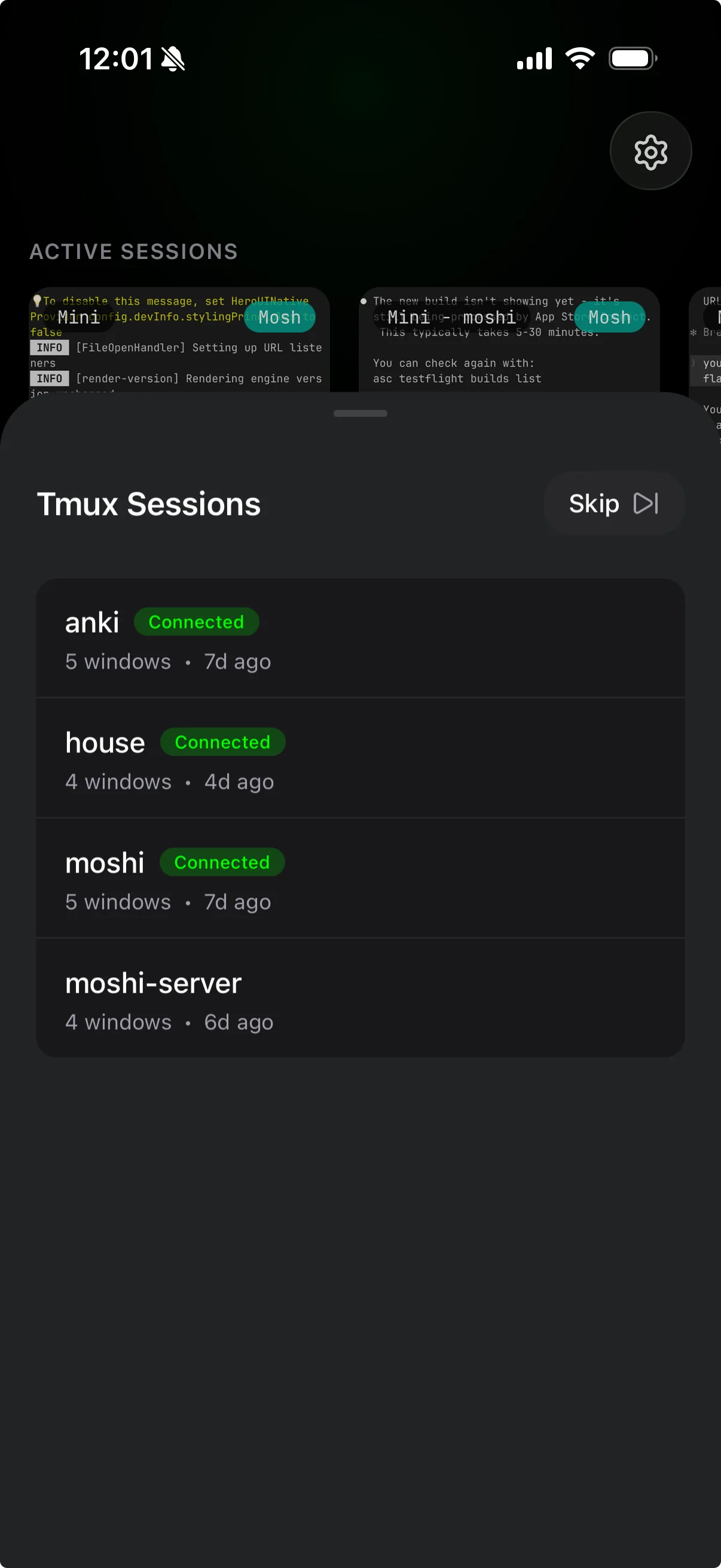
When connecting, Moshi detects your tmux sessions and lets you pick which one to attach:
Enable Agent Hooks and Push Notifications
This is Moshi's killer feature for AI agent workflows.
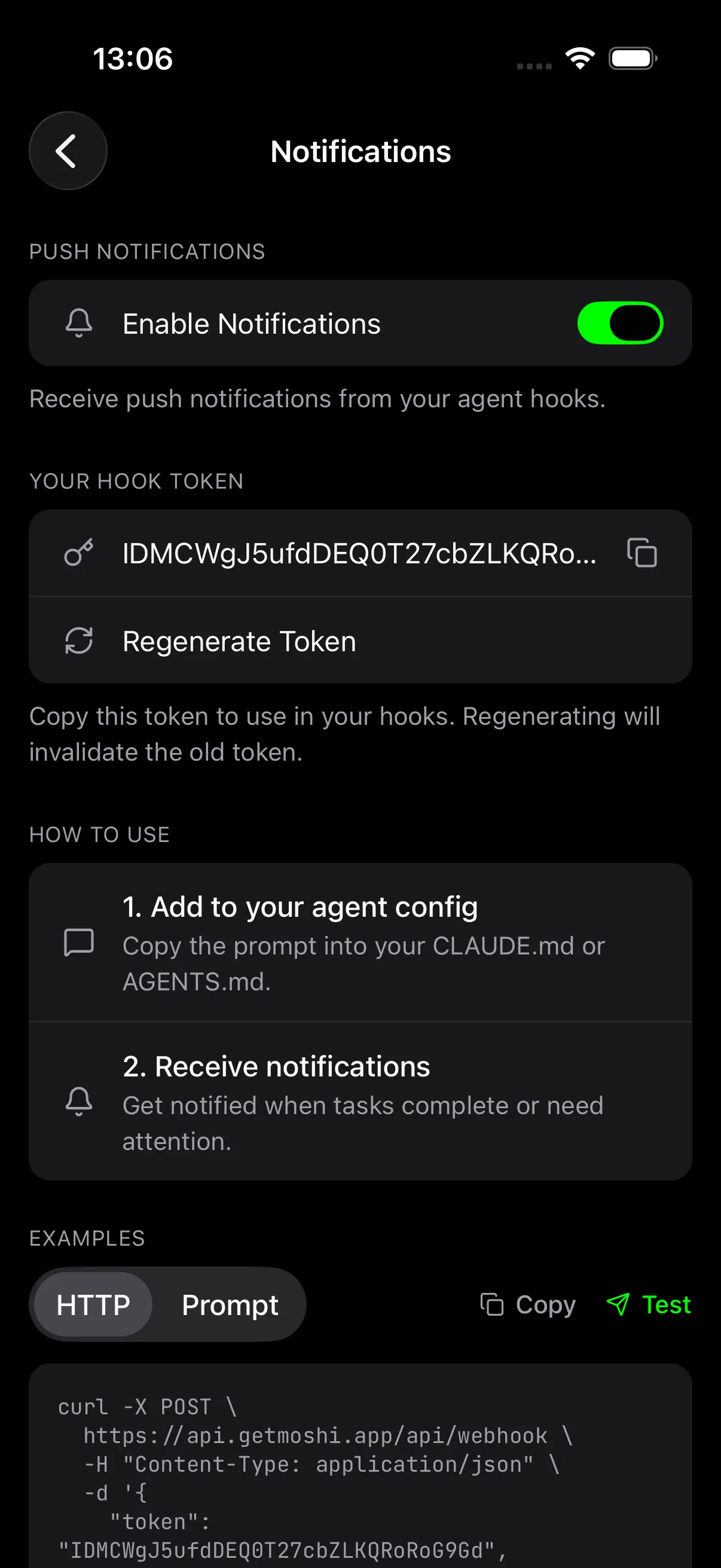
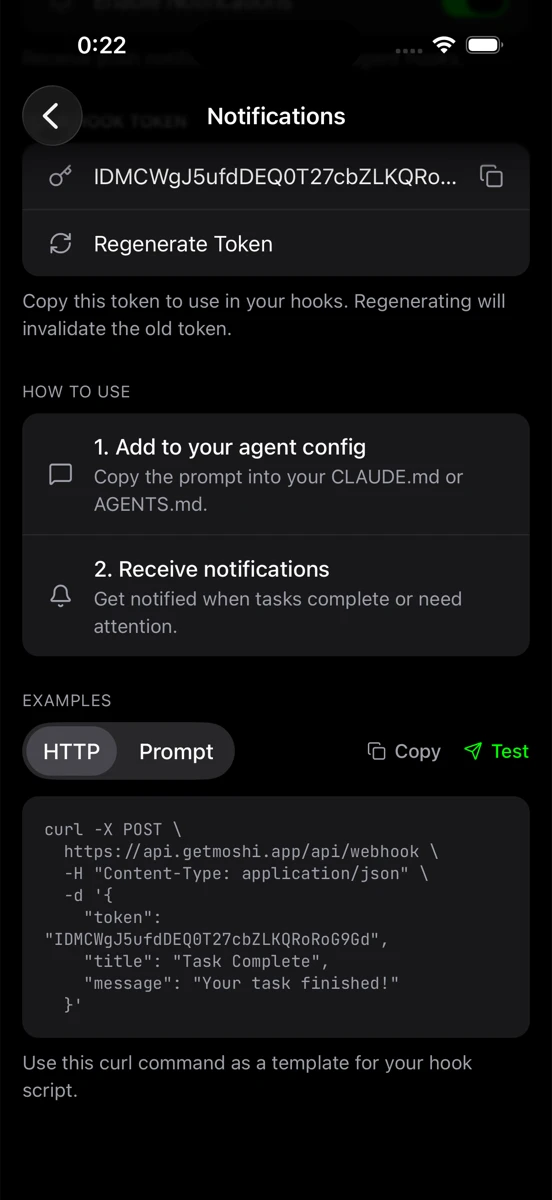
- Open Moshi -> Settings -> Notifications and enable notifications
- Open Moshi -> Settings -> Agent Hooks and copy your pairing token
- Pair the Mac:
moshi-hook pair --token <token from Moshi>
moshi-hook install
brew services start moshi-hook
moshi-hook status
Hook events land in the Agents feed, can update Live Activities, and sync to Apple Watch. Plain webhook notifications are still useful for scripts.
Configure Your AI Agent
For Claude Code, Codex, OpenCode, Cursor, Kimi, and Qwen, moshi-hook install writes Moshi-owned hook entries into the supported config files. For scripts or unsupported agents, add a webhook fallback to your project's CLAUDE.md or AGENTS.md:
## Notifications

When you complete a task or need input, notify me:

curl -s -X POST https://api.getmoshi.app/api/webhook \
  -H "Content-Type: application/json" \
  -d '{"token": "YOUR_TOKEN", "title": "Status", "message": "Brief summary"}'
Replace YOUR_TOKEN with your Moshi webhook token.
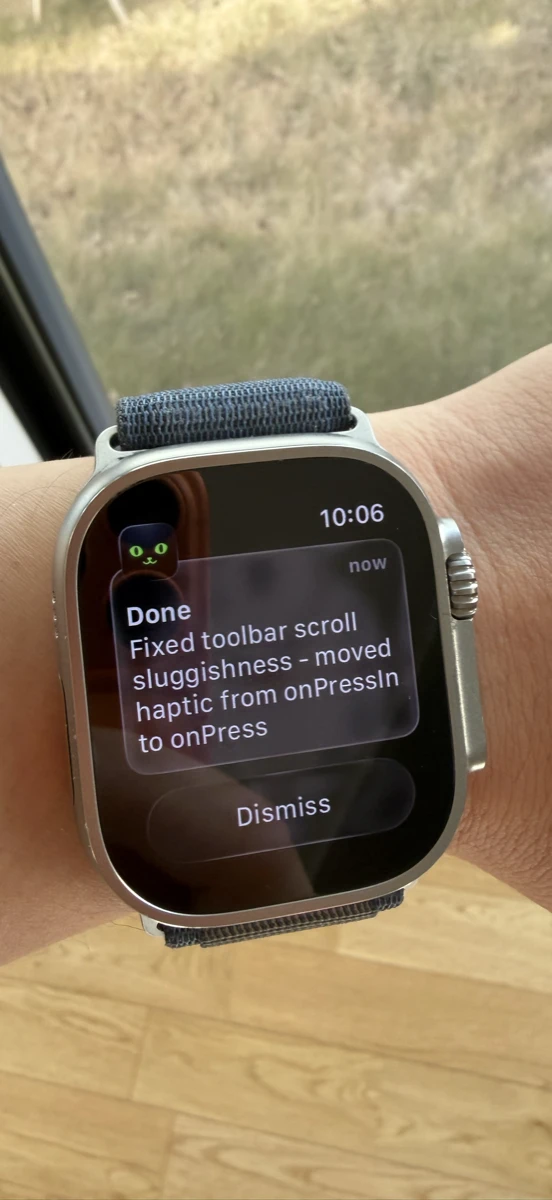
Now when Claude Code, Codex, or another supported agent needs approval or finishes a task, Moshi can show it in the Agents feed, Live Activity, push notification, and Apple Watch. For a detailed workflow guide, see My Daily Moshi Workflow and Moshi Agent Hooks.
Review Diffs and Preview Web Apps
Once moshi-hook is running, you get two more agent-review tools in the app. The diff viewer renders the repo's working tree — staged, unstaged, and untracked — as a side-by-side git diff served straight from the Mac, so you can check what the agent changed without leaving the session. Browser preview opens any dev server the agent starts (next dev, vite, a Python runserver) in the in-app browser over a per-session SSH forward — no public tunnel, no exposed port. See Diff viewer and Browser preview.
Voice Input
Moshi supports on-device Parakeet, Apple's on-device engine, local Whisper, and hosted cloud transcription:
- Parakeet: fast on-device model, recommended for English and many European languages
- Apple on-device: fast and private, no model to download
- Local Whisper: offline with the broadest language coverage
- Cloud: usually highest accuracy, with quota
When Claude asks "Should I run the migration?", hold the mic button, say "yes", release. Done.
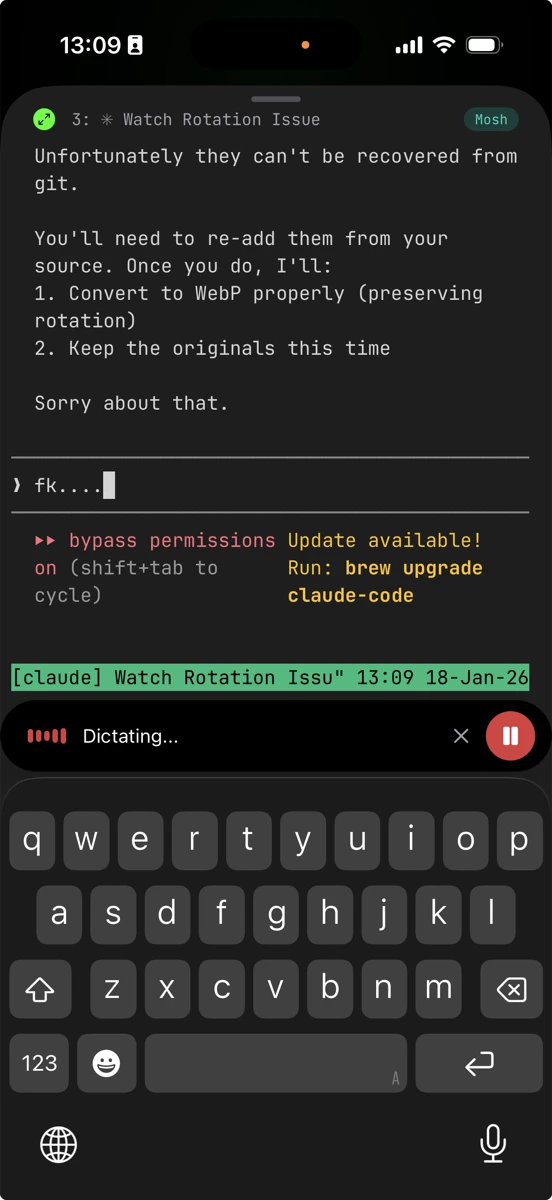
Image Paste
When your agent needs to see a screenshot, a UI bug, or a whiteboard photo, use Moshi's image paste. The image becomes a short URL in the prompt without scp, SFTP, or a temporary file on the Mac. See Image paste.
Powerline Fonts
Moshi has built-in support for Powerline fonts. If your tmux status bar or shell prompt uses Powerline symbols, they'll render correctly without additional font installation.
Why Mosh over Plain SSH
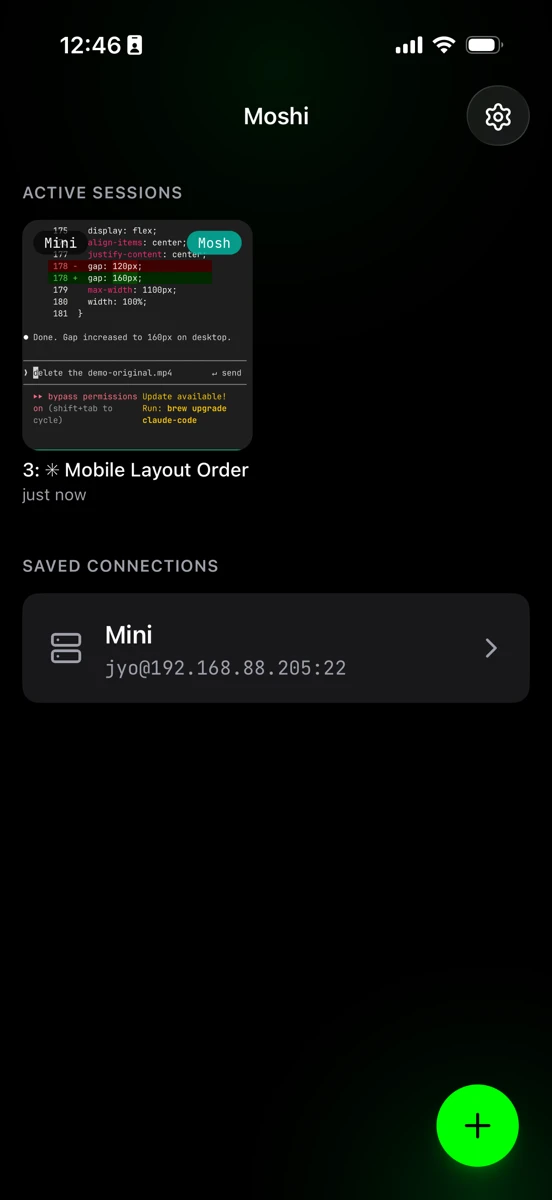
SSH over unreliable networks is painful. Switch WiFi networks, go to cellular, or let your phone sleep—your session dies.
Mosh (Mobile Shell) was built for this.
mosh vs SSH
| Feature | SSH | mosh |
|---|---|---|
| Protocol | TCP | UDP |
| Network roaming | Session dies | Survives |
| Packet loss handling | Freezes | Graceful |
| Local echo | None | Instant (~5ms) |
| Ctrl+C reliability | Can fail | Always works |
According to the mosh research paper, on a link with 29% packet loss, mosh reduced average response time from 16.8 seconds to 0.33 seconds—a 50x improvement.
This is critical for "endless" sessions. Your agent might run for hours or days. Mosh keeps you connected across network changes, sleep cycles, and spotty cellular.
The Scrollback Problem
Critical: mosh has no scrollback buffer.
From GitHub issue #122:
"Mosh's terminal scrollback buffer is incomplete because Mosh synchronizes only the visible state of the terminal."
Run ls -la on a large directory, and the overflow is gone. You can't scroll up.
The solution: always use mosh with a terminal multiplexer. Mosh handles the connection. tmux, Zellij, or Herdr handles the scrollback.
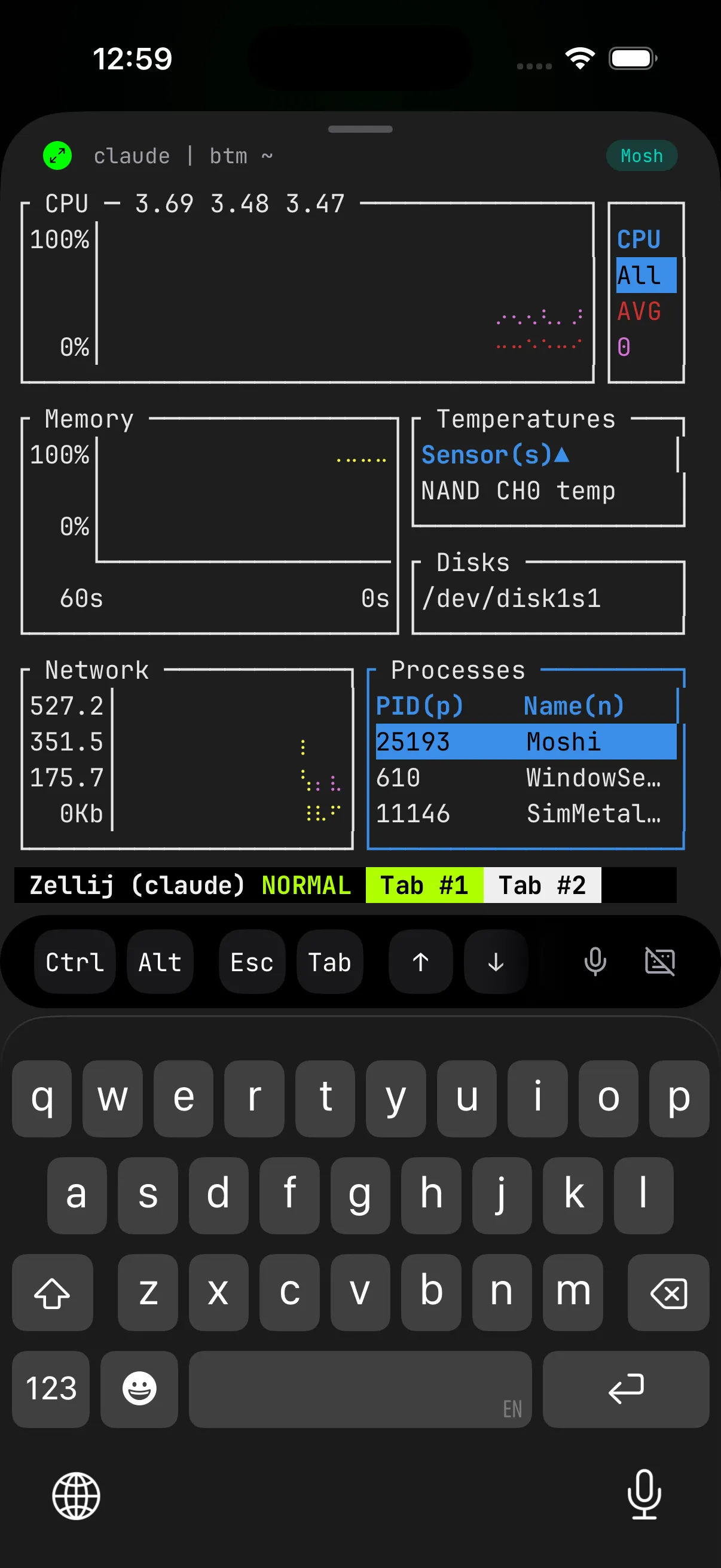
Alternative: Zellij
Zellij is a modern terminal multiplexer with on-screen keybinding hints. Choose it if you find tmux's commands hard to remember.
Limitation: Unlike tmux's set-titles-string, Zellij doesn't support custom title formats (issue #1495). If title customization matters for your Moshi workflow, stick with tmux.
brew install zellij

# Start a named session
zellij -s claude
For small screens, create ~/.config/zellij/config.kdl:
pane_frames false
simplified_ui true
default_layout "compact"
mouse_mode true
scroll_buffer_size 50000
See the Zellij documentation for keybindings and configuration.
Alternative: Herdr
Herdr is an agent-aware multiplexer: persistent named sessions, workspaces, tabs, and panes, with built-in awareness of which agent panes are blocked, working, or done. For an endless-agent setup that's mostly Claude Code and Codex, that state shows up in the multiplexer itself — handy when you're juggling several agents at once. Moshi treats it as a peer to tmux and Zellij: detection on connect, the session picker, a dedicated shortcut panel, and full hook context.
curl -fsSL https://herdr.dev/install.sh | sh

# Start or attach a named session
herdr
You give up only tmux's moshi DIR launcher; you keep prefix customization, the tab quick-access row, tap-to-open from agent events, the shortcut panel, and hook integration. See Herdr and the multiplexer support matrix.
Security Considerations
SSH Key-Only Authentication
Disable password authentication on your Mac:
# Edit SSH config
sudo nano /etc/ssh/sshd_config

# Add or modify these lines:
PasswordAuthentication no
ChallengeResponseAuthentication no

# Restart SSH
sudo launchctl stop com.openssh.sshd
sudo launchctl start com.openssh.sshd
With Tailscale SSH (--ssh flag), this is handled automatically—authentication uses your Tailscale identity.
Why VPN over Port Forwarding
Never expose SSH (port 22) or mosh (UDP 60000-61000) directly to the internet.
| Approach | Risk |
|---|---|
| Port forwarding | Exposed to entire internet, constant brute-force attempts |
| Tailscale/WireGuard | Only accessible to your authenticated devices |
Tailscale and WireGuard create a private network. Your Mac isn't visible to the public internet at all.
Firewall
If using Tailscale, no firewall changes needed—traffic flows over the Tailscale interface.
If self-hosting WireGuard or exposing services directly:
# macOS firewall (allow mosh)
sudo /usr/libexec/ApplicationFirewall/socketfilterfw --add /usr/local/bin/mosh-server
Quick Setup Checklist
Skip the details? Here's everything in one place.
Mac
# 1. Install tools
brew install mosh tmux tailscale moshi-hook

# 2. Configure tmux
cat >> ~/.tmux.conf << 'EOF'
set -g history-limit 50000
set -g mouse on
set -g set-titles on
set -g set-titles-string "#I: #T"
EOF

# 3. Start Tailscale
sudo tailscale up --ssh
tailscale ip  # Note this IP

# 4. Enable Remote Login
# System Settings → General → Sharing → Remote Login

# 5. Prevent sleep
# System Settings → Energy Saver → Prevent automatic sleeping

# 6. Pair agent hooks
moshi-hook pair --token <token from Moshi>
moshi-hook install
brew services start moshi-hook
Project Configuration
Optional fallback for scripts or unsupported agents in CLAUDE.md or AGENTS.md:
## Notifications

When you complete a task or need input, notify me:

curl -s -X POST https://api.getmoshi.app/api/webhook \
  -H "Content-Type: application/json" \
  -d '{"token": "YOUR_TOKEN", "title": "Status", "message": "Brief summary"}'
iPhone
- Install Tailscale → sign in
- Install Moshi
- Add server with Tailscale IP
- Settings -> Notifications -> enable notifications
- Settings -> Agent Hooks -> pair the Mac with
moshi-hook - Add webhook token to project
CLAUDE.mdonly when you want manual script notifications
FAQ
Why not use a VPS?
Your Mac gives you macOS-specific tooling (Xcode, Simulator), local network access, and no monthly fees. For iOS developers, a Mac is often required anyway.
What if I lose internet?
Mosh waits gracefully and reconnects automatically when connectivity returns. Your tmux session keeps running regardless.
Does the agent keep running if I close Moshi?
Yes. The agent runs in tmux on your Mac. Moshi is just a window into that session.
Cost?
Tailscale is free for many personal setups. Moshi has a free tier, and Pro unlocks daily-driver features such as mosh, tmux pairing, image paste, custom themes/fonts, unlimited saved hosts, and Apple Watch actions. One Pro license also covers multiple devices — share it across your iPhone, iPad, and Watch with unified push fanout. See Free vs Pro and Licensing and sharing.
Related Articles
- Fix SSH Connection Errors — troubleshoot Permission Denied, Connection Refused, and Mosh issues
- Fix Mosh Connection Failed — Tailscale SSH incompatibility, UDP ports, locale errors, and more
- My Daily Moshi Workflow — how to organize tmux windows for AI agents
- Mastering Moshi's Terminal Keyboard — shortcuts, modifiers, and voice input
- Complete Remote Coding Setup — mosh, tmux, Tailscale overview
- Best iOS Terminal App Comparison — Moshi vs Blink vs Termius
- Moshi vs Termius — the focused 1:1 comparison
- Moshi vs Happy — versus the free, open-source Claude Code client
- Moshi Agent Hooks — Agents feed, Live Activities, usage, and Apple Watch
- Tailscale — current Moshi-specific Tailscale behavior
- Multiplexers — tmux, Zellij, and Herdr support matrix
- Diff viewer — review agent git changes in-app
- Browser preview — open localhost dev servers over SSH
- Image paste — send screenshots and photos to agents