Mosh bootstraps over SSH, then switches to UDP. When either step breaks, the error messages are useless. Here's what's actually going wrong.
TL;DR: Mosh failures fall into two categories — the SSH bootstrap fails (fix SSH first), or the UDP handoff fails (firewall, locale, or broken shell config). The sneakiest pitfall: Tailscale SSH isn't real OpenSSH, so Mosh can't bootstrap through it. Install OpenSSH alongside Tailscale and everything works.
Mosh is the best way to maintain a persistent terminal session from your phone. It survives WiFi switches, cellular handoffs, and iOS suspending your app. But when it doesn't connect, you get one of the least helpful error messages in computing:
mosh: Did not find mosh-server startup message
That single error can mean a dozen different things. This guide covers every Mosh connection pitfall — starting with the one that wastes the most time.
How Mosh Connects (30-Second Version)
Before diving into fixes, here's what Mosh does when you tap "Connect" in Moshi:
Step 1 — SSH Bootstrap
  Client runs: ssh user@host mosh-server new
  Server starts mosh-server, prints:
    MOSH CONNECT 60001 <secret-key>

Step 2 — UDP Handoff
  Client reads the port + key from Step 1
  Client connects directly via UDP to that port
  SSH connection closes — no longer needed
If Step 1 fails → you have an SSH problem. If Step 2 fails → you have a UDP/firewall problem. If both steps succeed but the output is garbled → something is corrupting the handshake.
Tailscale SSH + Mosh: The Hidden Incompatibility
Hat tip to Edouard-Stefanita Andrei (@AndreiEdouard) for flagging this one.
This is the #1 time-waster. Everything looks like it should work — Tailscale is connected, you can SSH in, but Mosh fails with a vague error.
Why it happens
When you enable tailscale up --ssh, Tailscale runs its own built-in SSH server. This is not OpenSSH. It's a purpose-built implementation that handles:
- Identity-based authentication via your tailnet
- ACL enforcement
- Interactive shell sessions
But Mosh doesn't need an interactive shell. It needs to run a specific command (mosh-server new) and parse the output. Tailscale's SSH server doesn't perfectly replicate OpenSSH's command execution semantics, so the bootstrap fails.
The confusing part: regular SSH works fine through Tailscale. You can ssh user@host all day. It's only Mosh that breaks, because Mosh uses SSH differently than a human does.
The fix: install OpenSSH alongside Tailscale
You don't need to disable Tailscale SSH — you can keep using it for passwordless, keyless SSH connections. Just make sure OpenSSH is also running on the server. Mosh will bootstrap through OpenSSH while everything still flows through the encrypted Tailscale tunnel.
On macOS: System Settings → General → Sharing → Remote Login → Enable
On Linux:
sudo systemctl enable --now sshd
That's it. Both can coexist. Tailscale SSH keeps working for interactive sessions, and Mosh gets the OpenSSH compatibility it needs to launch mosh-server.
| Layer | Handled by |
|---|---|
| Encrypted network tunnel | Tailscale (WireGuard) |
| Passwordless interactive SSH | Tailscale SSH (still works) |
| Mosh bootstrap (command execution) | OpenSSH |
| Persistent UDP session | Mosh |
UDP Ports Blocked (The Classic)
The most common Mosh failure after the SSH bootstrap succeeds:
mosh: Nothing received from server on UDP port 60001.
Mosh negotiates a UDP port during the SSH handshake (Step 1), then tries to connect to it directly. If a firewall drops UDP traffic on that port — silence.
Why UDP is different from TCP
SSH uses TCP port 22. You probably already opened that. But Mosh uses UDP ports 60000-61000, and many firewalls treat UDP and TCP rules separately. Opening TCP 60000 does nothing for Mosh.
The fix
Open UDP ports on your server's firewall:
# Ubuntu/Debian (ufw):
sudo ufw allow 60000:61000/udp

# CentOS/RHEL (firewalld):
sudo firewall-cmd --add-port=60000-61000/udp --permanent
sudo firewall-cmd --reload
For cloud instances, update your security group:
# AWS: Security Group → Inbound Rules → Add Rule:
#   Type: Custom UDP, Port range: 60000-61000, Source: 0.0.0.0/0
To reduce the attack surface, pin Mosh to a specific port or narrow range instead of opening all 1000 ports.
In Moshi, set the UDP Port Range fields when editing your connection — for example, 60500 to 60600 for a 100-port window:
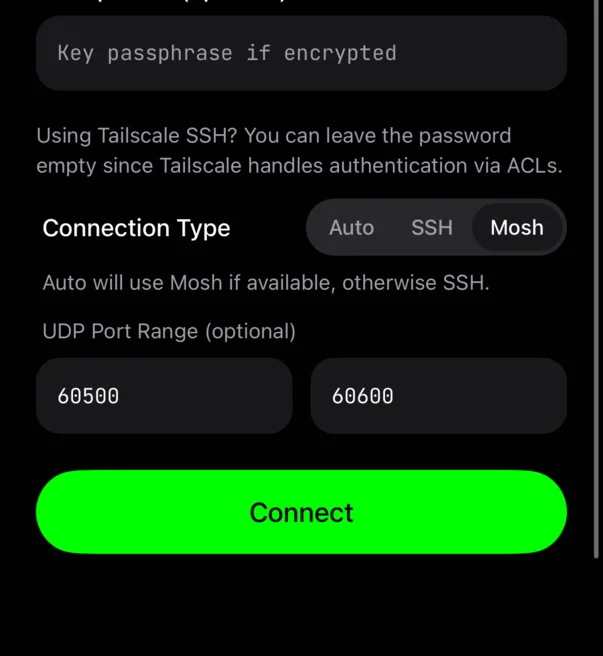
Then only open that range in your firewall:
sudo ufw allow 60500:60600/udp
If you're using Tailscale or another VPN, UDP traffic flows through the tunnel automatically — no port rules needed.
mosh-server Not Found
mosh: Did not find mosh-server startup message
or
/usr/bin/mosh-server: No such file or directory
The SSH bootstrap worked, but the server can't find or start mosh-server.
It's not installed
Install it on the server:
# macOS:
brew install mosh

# Ubuntu/Debian:
sudo apt install mosh

# CentOS/RHEL:
sudo dnf install mosh
It's installed but not in PATH
Non-interactive SSH sessions don't load your shell profile. If Mosh was installed via Homebrew, the binary might be in /opt/homebrew/bin/ (Apple Silicon) or /usr/local/bin/ (Intel), which isn't in the default PATH for non-interactive sessions. This is especially common on macOS where Homebrew's PATH is only set in ~/.zshrc (interactive shells) — see Fix Mosh Falling Back to SSH on macOS for the full explanation and fix.
Specify the full path in Moshi's connection settings (Mosh Server Path field), or from the command line:
mosh --server=/opt/homebrew/bin/mosh-server user@your-server
To find where it's installed:
which mosh-server
# /opt/homebrew/bin/mosh-server
Locale / UTF-8 Errors
mosh-server needs a UTF-8 native locale to run.
Mosh requires a UTF-8 locale. Many minimal server installs (Docker containers, stripped-down cloud images) don't have one configured.
The fix
# Generate the locale:
sudo locale-gen en_US.UTF-8
sudo update-locale LANG=en_US.UTF-8

# Verify:
locale
# LANG should show en_US.UTF-8 or similar
If you can't change the system locale (shared server, no sudo), set it in your shell profile:
# Add to ~/.bashrc or ~/.zshrc:
export LC_ALL=en_US.UTF-8
export LANG=en_US.UTF-8
For Docker containers, add this to your Dockerfile:
RUN apt-get update && apt-get install -y locales \
    && locale-gen en_US.UTF-8
ENV LANG=en_US.UTF-8
ENV LC_ALL=en_US.UTF-8
Shell Startup Scripts Breaking the Handshake
This is a subtle one. Mosh connects, the SSH bootstrap runs mosh-server new, and the server prints:
MOSH CONNECT 60001 <secret-key>
But if your .bashrc, .zshrc, or .profile prints anything before that line — a welcome message, fortune, neofetch, a motd — the client can't parse the connection info.
mosh: Did not find mosh-server startup message
The fix
Guard any output in your shell profile so it only runs in interactive sessions:
# In ~/.bashrc or ~/.zshrc:
if [[ $- == *i* ]]; then
    echo "Welcome back!"
    neofetch
    fortune
fi
The [[ $- == *i* ]] check tests whether the shell is interactive. SSH command execution (ssh host mosh-server new) is non-interactive, so the output gets skipped.
Finding the culprit
If you're not sure what's printing output, test it:
# From your Mac, run the same command Mosh runs:
ssh user@your-server 'echo START; mosh-server new'
Anything printed before MOSH CONNECT is the problem.
Version Mismatch Between Client and Server
mosh: Server does not support this protocol version
Mosh's protocol has evolved over time. If the server is running an ancient version of mosh-server and the client is current (or vice versa), they may not be able to negotiate.
The fix
Check versions on both sides:
# On the server:
mosh-server --version

# On the client (Mac):
mosh --version
Update the older one. On the server:
# macOS:
brew upgrade mosh

# Ubuntu/Debian:
sudo apt update && sudo apt upgrade mosh

# CentOS/RHEL:
sudo dnf upgrade mosh
Connection Hangs After "mosh-server new"
The SSH bootstrap succeeds, mosh-server starts, but the client hangs and eventually times out. You might see nothing, or:
mosh: Nothing received from server on UDP port 60001.
This looks like the UDP ports issue, but you've already opened them. What else?
NAT is rewriting the source port
Some NATs (especially carrier-grade NAT on mobile networks) rewrite UDP source ports. Mosh expects replies on the same port it sent from. If NAT changes it, the server's replies go to the wrong port.
The fix: use a VPN like Tailscale to bypass NAT entirely. This is the recommended setup for mobile connections anyway. See the complete remote setup guide.
The server has multiple network interfaces
If your server has multiple IPs (common with Docker, VPNs, or multiple NICs), mosh-server might bind to the wrong one. The client tries to connect to the public IP, but mosh-server is listening on an internal interface.
# Force mosh-server to bind to a specific IP:
mosh --server="mosh-server new -i 0.0.0.0" user@your-server
The -i 0.0.0.0 tells mosh-server to listen on all interfaces.
Mosh Works but Disconnects Frequently
Aggressive server-side cleanup
Some servers run cron jobs or systemd timers that kill idle mosh-server processes. Check if there's something cleaning up old sessions:
# List running mosh-server processes:
ps aux | grep mosh-server

# Check for aggressive cleanup scripts:
grep -r mosh /etc/cron* /etc/systemd/system/ 2>/dev/null
Server's firewall has connection tracking timeouts
Stateful firewalls (like conntrack on Linux) may drop the UDP "connection" entry after a period of inactivity. When the client sends the next packet, the firewall sees it as a new, unsolicited connection and drops it.
# Increase conntrack timeout for UDP (default is often 30s):
sudo sysctl -w net.netfilter.nf_conntrack_udp_timeout=120
sudo sysctl -w net.netfilter.nf_conntrack_udp_timeout_stream=300
To make it persistent:
echo "net.netfilter.nf_conntrack_udp_timeout=120" | sudo tee -a /etc/sysctl.conf
echo "net.netfilter.nf_conntrack_udp_timeout_stream=300" | sudo tee -a /etc/sysctl.conf
Quick Reference: Error → Fix
| Error message | Likely cause | Fix |
|---|---|---|
Did not find mosh-server startup message | mosh-server not installed, not in PATH, or shell output corrupting handshake | Install mosh, specify full path, guard shell output |
Nothing received from server on UDP port | UDP ports blocked by firewall | Open UDP 60000-61000 |
needs a UTF-8 native locale | No UTF-8 locale on server | locale-gen en_US.UTF-8 |
Connection to host closed before Mosh starts | SSH bootstrap failed | Fix SSH first — see SSH troubleshooting guide |
| SSH works, Mosh doesn't (Tailscale) | Tailscale's built-in SSH server isn't OpenSSH-compatible for Mosh | Install OpenSSH alongside Tailscale |
Server does not support this protocol version | Client/server version mismatch | Update mosh on both sides |
| Connects then drops after minutes | Firewall conntrack timeout or NAT issues | Increase UDP timeout, use Tailscale VPN |
Related Articles
- Mosh vs SSH — how the two protocols actually differ, and when to use each
- Fix Mosh Falling Back to SSH on macOS — why Homebrew's PATH breaks non-interactive shells and the one-line fix
- Fix SSH Connection Errors — the companion guide for SSH-level issues
- Fix Mosh Scrollback — why Mosh can't scroll up and how to get scrollback with tmux
- Complete Remote Coding Setup — Tailscale + Mosh + tmux, the full stack
- Using Your Mac as a Remote Agent — always-on server setup
- My Daily Moshi Workflow — organizing tmux sessions for AI agents
- Tailscale — current Moshi-specific Tailscale setup, sleep behavior, and address rules
- Troubleshooting — live docs for connection, hook, push, dictation, and Pro issues
Resources
- Moshi — Mobile Terminal for Developers
- mosh — Mobile Shell
- Tailscale SSH Documentation
- Mosh GitHub Issues — community troubleshooting