You configured Mosh, your connection "works" — but you're actually on plain SSH. Here's why Homebrew's default setup breaks Mosh, and how to fix it for zsh, bash, and fish.
TL;DR: Mosh bootstraps by running mosh-server new through a non-interactive SSH shell. On macOS, Homebrew's installer tells you to add its PATH to ~/.zprofile — a file that only loads for login shells. Non-interactive shells never see it, so mosh-server isn't found and your client silently falls back to SSH. The fix: move your Homebrew PATH setup to ~/.zshenv (zsh) or ~/.bashrc (bash). One line, and Mosh, the Moshi tmux session picker, and every other Homebrew tool start working over SSH.
The Symptoms
When Homebrew's PATH is missing from non-interactive shells, multiple things break at once:
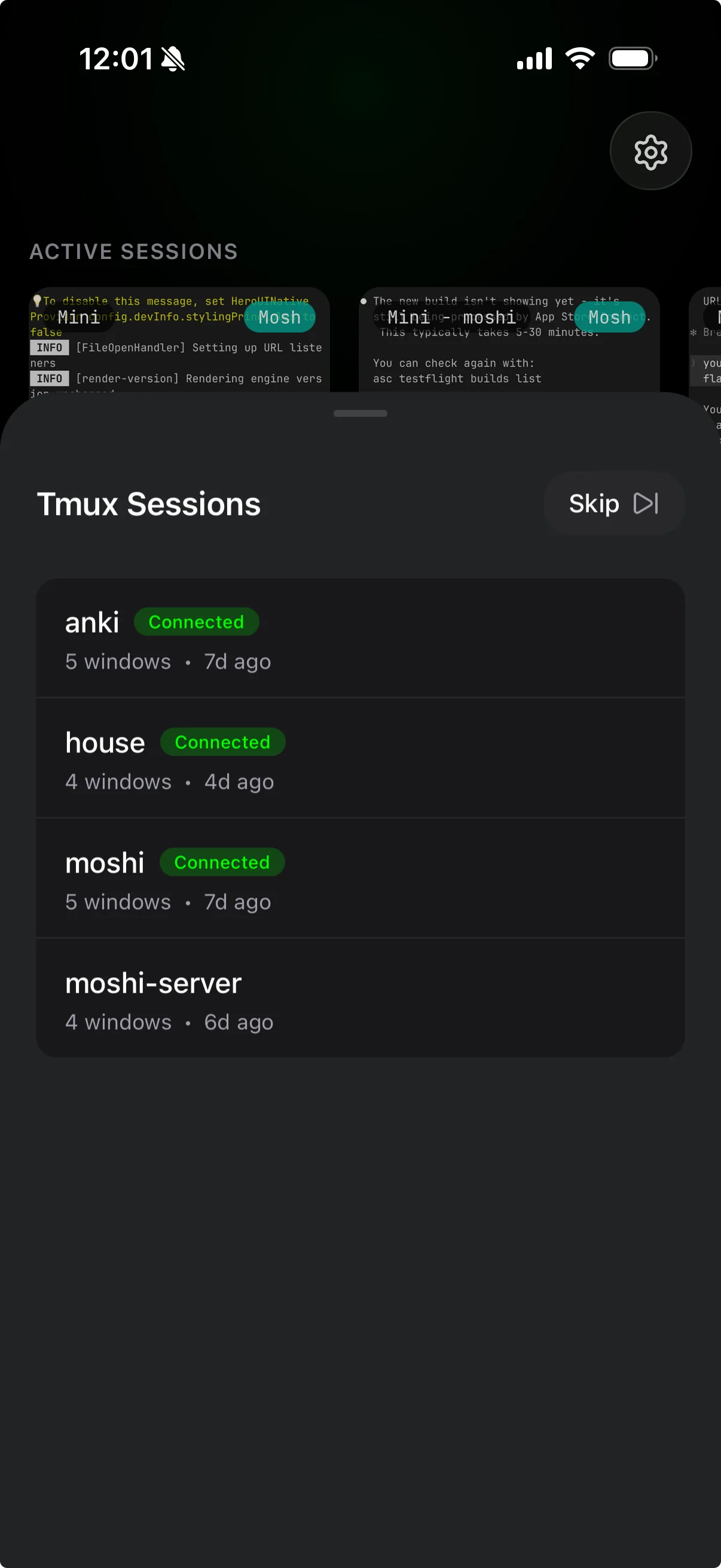
- The tmux session picker doesn't appear on connect — Moshi detects sessions by running
tmux lsover SSH before opening your terminal. Iftmux(a Homebrew binary) isn't in the non-interactive PATH, the detection fails silently and you go straight to a bare shell - Mosh falls back to SSH — if your connection mode is "Auto", Moshi tries Mosh first, but
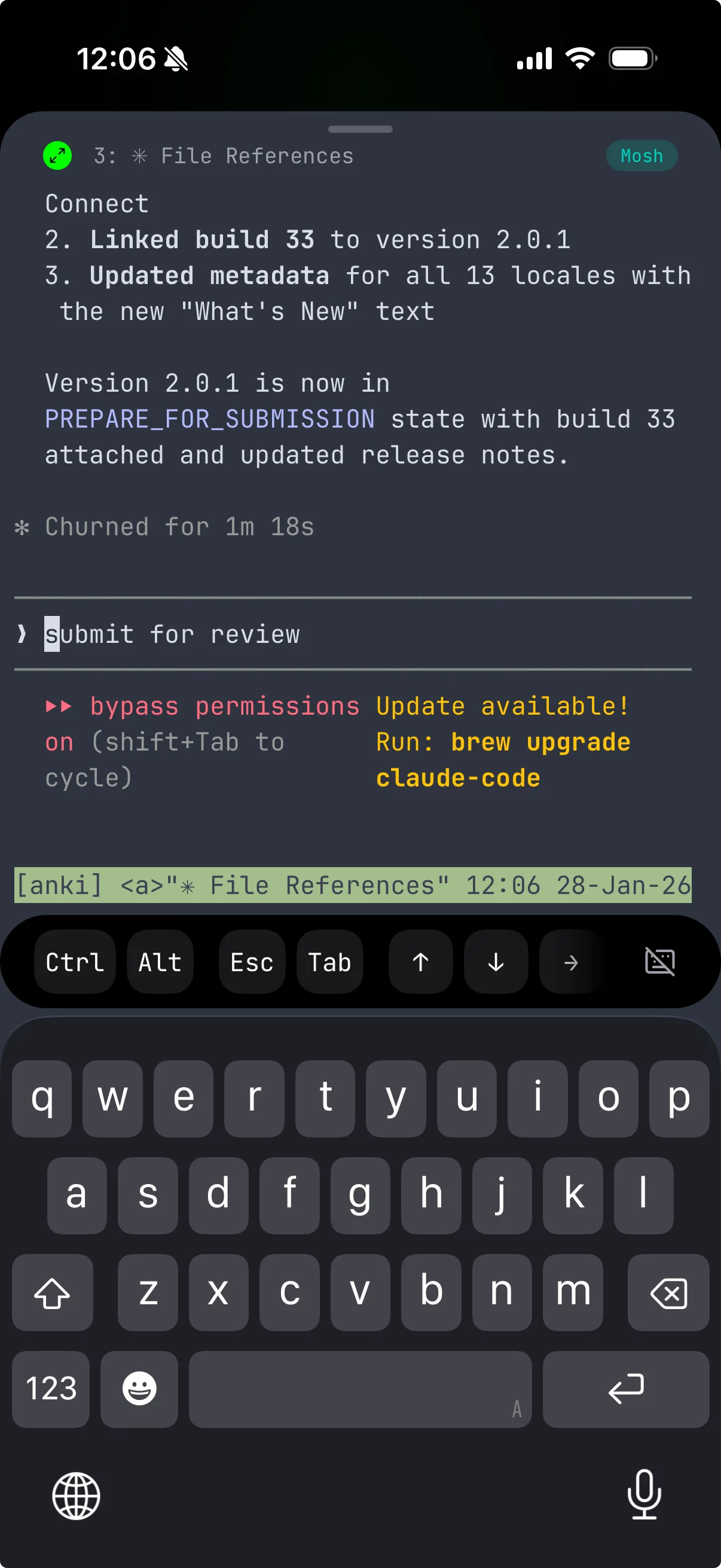
mosh-server(also Homebrew) isn't found, so it silently falls back to plain SSH. You lose reconnection after network switches, roaming when the app suspends, and UDP-based latency reduction. You can check which protocol you're on by looking at the badge in the top-right corner of the terminal — it reads "Mosh" or "SSH" - Remote commands can't find tools — any
ssh user@mac 'some-homebrew-command'fails with "command not found"
All three symptoms share the same root cause, and the same one-line fix resolves all of them.
Why Homebrew's Default Setup Breaks Mosh
Mosh connects in two steps:
- The client runs
ssh user@host -- 'mosh-server new'to start a server process - It reads the port and key from the response and switches to a direct UDP connection
Step 1 runs through a non-interactive, non-login shell. It's SSH executing a command, not opening a terminal session. And that distinction matters because of how shells load their config files.
What Homebrew tells you to do
After installing Homebrew on Apple Silicon, the installer prints:
==> Next steps:
- Run this command in your terminal to add Homebrew to your PATH:
    eval "$(/opt/homebrew/bin/brew shellenv)"
- Add it to your shell profile:
    echo >> ~/.zprofile
    echo 'eval "$(/opt/homebrew/bin/brew shellenv)"' >> ~/.zprofile
Homebrew recommends ~/.zprofile. This is a login shell config file — it loads when you open Terminal.app, iTerm2, or start a new login session. For everyday use, it works fine.
But when Mosh bootstraps through SSH, the shell that executes mosh-server new is non-interactive and non-login. It never reads ~/.zprofile. The PATH stays at the system default — /usr/bin:/bin:/usr/sbin:/sbin — and mosh-server isn't found.
Why Homebrew chose .zprofile over .zshenv
There's a reason Homebrew doesn't recommend ~/.zshenv, even though it would solve this problem. macOS ships with /etc/zprofile, which runs /usr/libexec/path_helper — a system utility that reorders your PATH by reading /etc/paths and /etc/paths.d/*. Since /etc/zprofile runs after ~/.zshenv but before ~/.zprofile, any PATH you set in ~/.zshenv gets rearranged: system paths move to the front, pushing Homebrew's paths behind them.
For interactive shells, this means ~/.zprofile gives you a cleaner PATH order. But for non-interactive shells — the kind Mosh uses — ~/.zprofile never loads at all. You have to choose: slightly reordered PATH in interactive shells, or no Homebrew in non-interactive shells. The fix below picks the tradeoff that actually works.
Which Shell Config Files Load When
This is the core of the problem. Each shell has different rules about which config files it reads depending on how it's invoked.
zsh (macOS default since Catalina)
| File | Interactive login | Interactive non-login | Non-interactive (SSH command) |
|---|---|---|---|
~/.zshenv | Yes | Yes | Yes |
~/.zprofile | Yes | — | — |
~/.zshrc | Yes | Yes | — |
~/.zlogin | Yes | — | — |
When Mosh runs ssh user@host 'mosh-server new', zsh only reads ~/.zshenv. Everything else is skipped.
bash
| File | Interactive login | Interactive non-login | Non-interactive (SSH command) |
|---|---|---|---|
~/.bash_profile | Yes | — | — |
~/.bashrc | Via .bash_profile | Yes | Depends (see below) |
~/.profile | Fallback if no .bash_profile | — | — |
Bash has a quirk: it sources ~/.bashrc for non-interactive remote shells when it detects SSH (by checking for $SSH_CLIENT). But Mosh passes -tt to SSH to force a pseudo-terminal, which defeats this detection. So with Mosh specifically, bash does not source ~/.bashrc for the bootstrap command. The safest place for PATH setup is still ~/.bashrc (most SSH use cases work), but for guaranteed coverage you may need ~/.bash_profile to source ~/.bashrc, or use the $BASH_ENV variable.
fish
| File | Interactive login | Interactive non-login | Non-interactive (SSH command) |
|---|---|---|---|
config.fish | Yes | Yes | Yes |
Fish loads ~/.config/fish/config.fish for every invocation. If you use fish and Homebrew is configured there, Mosh generally just works. Guard any output-producing commands with status is-interactive to avoid interfering with the SSH handshake.
The Fix
zsh (most Mac users)
Add Homebrew's PATH to ~/.zshenv on the Mac you're connecting to. SSH in and run:
Apple Silicon (M1/M2/M3/M4):
echo 'eval "$(/opt/homebrew/bin/brew shellenv)"' >> ~/.zshenv
Intel Mac:
echo 'eval "$(/usr/local/bin/brew shellenv)"' >> ~/.zshenv
brew shellenv sets PATH, HOMEBREW_PREFIX, HOMEBREW_CELLAR, and related variables. Putting it in ~/.zshenv ensures every shell type — including the non-interactive one Mosh uses — can find Homebrew-installed binaries.
You can keep the same line in ~/.zprofile too. For interactive login shells, ~/.zprofile runs after macOS's path_helper and gives you clean PATH ordering. For non-interactive shells, ~/.zshenv is the one that matters.
bash
If you've changed your Mac's default shell to bash, add Homebrew to ~/.bashrc:
echo 'eval "$(/opt/homebrew/bin/brew shellenv)"' >> ~/.bashrc
Then make sure ~/.bash_profile sources it (if it doesn't already):
echo 'source ~/.bashrc' >> ~/.bash_profile
This covers interactive login shells (via .bash_profile → .bashrc), interactive non-login shells (.bashrc directly), and most non-interactive SSH sessions.
fish
Fish typically handles this out of the box. If you installed Homebrew's PATH via fish_add_path, it's stored in universal variables and available everywhere. If not:
echo 'eval (/opt/homebrew/bin/brew shellenv)' >> ~/.config/fish/config.fish
Verify it worked
From another machine (or from Moshi), test the non-interactive PATH:
ssh user@your-mac 'which mosh-server'
If it prints /opt/homebrew/bin/mosh-server (Apple Silicon) or /usr/local/bin/mosh-server (Intel), you're set. If it prints nothing or "not found", the PATH isn't loading — double-check that the right config file exists and contains the brew shellenv line.
Now reconnect from Moshi with mode set to "Auto" or "Mosh." You should see the tmux session picker appear on connect:
What Else This Fixes
Any Homebrew-installed tool that runs from a non-interactive SSH session has the same problem. Common examples:
tmux— remote attach commands over SSHnode,bun,python— build scripts triggered remotelygit— if automation uses the Homebrew-installed versionclaude— if you trigger Claude Code over SSH
The shell config fix resolves all of them at once.
Alternative: Set the Mosh Server Path in Moshi
If you'd rather not modify shell config files, you can tell Moshi exactly where mosh-server lives. Edit your connection and set the Mosh Server Path field to:
/opt/homebrew/bin/mosh-server
This bypasses PATH lookup entirely. It works, but fixing the shell config is better long-term — it solves the problem for every Homebrew tool, not just mosh-server.
From the command line, the equivalent is:
mosh --server=/opt/homebrew/bin/mosh-server user@your-mac
Related Articles
- Mosh vs SSH — how the two protocols actually differ, and when to use each
- Fix Mosh Connection Failed — every Mosh connection pitfall and how to solve it
- Fix Mosh Scrollback — why Mosh can't scroll up and how to get scrollback with tmux
- Using Your Mac as a Remote Agent — always-on Mac server setup
- Complete Remote Coding Setup — Tailscale + Mosh + tmux, the full stack
- Connections and authentication — custom mosh server path, connection type, and key auth reference
- Troubleshooting — current mosh diagnostics and app-side fields
Resources
- Moshi — Mobile Terminal for Developers
- zsh Startup Files — official docs on which config files load when
- Homebrew Installation — Homebrew setup documentation
- Homebrew Discussion #1127 — the
.zshenvvs.zprofiledebate