You ran a long command, the output flew past, and now you can't scroll up to see it. Here's why Mosh does this — and the one fix that actually works.
TL;DR: Mosh doesn't support scrollback because it syncs screen state instead of streaming raw output. The fix is tmux — it keeps its own scrollback buffer on the server. Enable set -g mouse on in your ~/.tmux.conf and you can swipe to scroll. If you're using Moshi, connect through the tmux session picker and mouse mode is enabled automatically.
You connect to your server with Mosh, run a build, and 500 lines of output scroll past. You swipe up to scroll back — nothing happens. The screen just sits there.
This isn't a bug. It's a fundamental design choice in how Mosh works.
Why Mosh Has No Scrollback
SSH and Mosh move data differently.
SSH is a pipe. Your server sends a raw stream of bytes, and your terminal client stores everything it receives in a scrollback buffer. When you scroll up, you're reading from that local buffer. The server doesn't know or care — you're just looking at bytes the client already saved.
Mosh works like a remote display. Instead of streaming bytes, Mosh tracks the current state of your terminal screen — what's on it right now, character by character, cursor position, colors, everything. It uses a protocol called SSP (State Synchronization Protocol) to keep the client's display in sync with the server's terminal state.
When output scrolls past the bottom of your screen, the server's terminal state no longer contains those lines. They're gone from the state. And since Mosh only syncs current state, the client has nothing to scroll back to.
SSH:
  Server → raw bytes → Client stores in buffer → You scroll the buffer

Mosh:
  Server → "here's what the screen looks like now" → Client renders it
  (no buffer, no history, nothing to scroll)
This design is what makes Mosh great on mobile — it can reconnect after a network switch and instantly show you the current screen without replaying megabytes of buffered output. But it means scrollback has to come from somewhere else.
The Fix: tmux
tmux is the answer to Mosh scrollback. It runs on the server, keeps its own scrollback buffer, and Mosh just renders whatever tmux shows — including scrolled-back history.
Install tmux on the server
# macOS:
brew install tmux

# Ubuntu/Debian:
sudo apt install tmux

# CentOS/RHEL:
sudo dnf install tmux
Start a tmux session
tmux new -s work
Enable mouse scrolling
This is the single most important setting. Without it, swipe gestures and scroll do nothing in tmux:
# Add to ~/.tmux.conf on the server:
set -g mouse on
With mouse mode enabled, you can swipe to scroll in Moshi, use mouse wheel on desktop terminals, and click to select panes. tmux automatically enters copy mode when you scroll up, and exits when you scroll back to the bottom.
Increase the scrollback buffer
The default buffer is 2,000 lines. For builds and long logs, increase it:
# Add to ~/.tmux.conf on the server:
set -g history-limit 50000
Recommended ~/.tmux.conf
# The two settings that matter most for Mosh scrollback:
set -g mouse on
set -g history-limit 50000
Reload after editing:
tmux source-file ~/.tmux.conf
Keyboard scrolling (without mouse mode)
If you can't enable mouse mode, use copy mode manually:
- Press
Ctrl+Bthen[to enter copy mode - Use arrow keys or
Page Up/Page Downto scroll /patternto search within the buffer- Press
qorEscapeto exit copy mode
Why tmux is the right answer
tmux solves multiple problems at once:
- Scrollback buffer that survives Mosh reconnects
- Session persistence — your work survives even if Mosh disconnects
- Multiple windows and panes in a single connection
- Searchable history (
Ctrl+Bthen[then/to search)
If you're running AI coding agents like Claude Code or Codex from your phone, tmux is essential. These agents produce massive amounts of output — diffs, build logs, test results — and you need to scroll back through all of it to review what they did. Without tmux, that output is gone the moment it leaves the screen. With it, you can swipe back through the entire session, check every change, and keep multiple agents running in separate windows.
tmux is the most popular multiplexer, but the same logic applies to Zellij and Herdr: each keeps scrollback on the host, and Moshi detects all three on connect. Pick whichever you already run.
If you're using Mosh without a multiplexer, you're missing half the point. See the complete remote setup guide for how to pair them together, or Scrolling and scrollback for the current Moshi settings and copy-mode details.
Using Moshi with tmux
In Moshi, tmux scrollback works natively with swipe gestures — as long as mouse mode is on. Just swipe up to scroll through history; no need to manually enter copy mode. Once you've scrolled up, a scroll-to-bottom button appears so you can jump back to the live prompt in one tap.
Moshi's tmux session picker
When you connect to a server, Moshi detects running tmux sessions and shows a picker — tap to attach directly, no typing required:
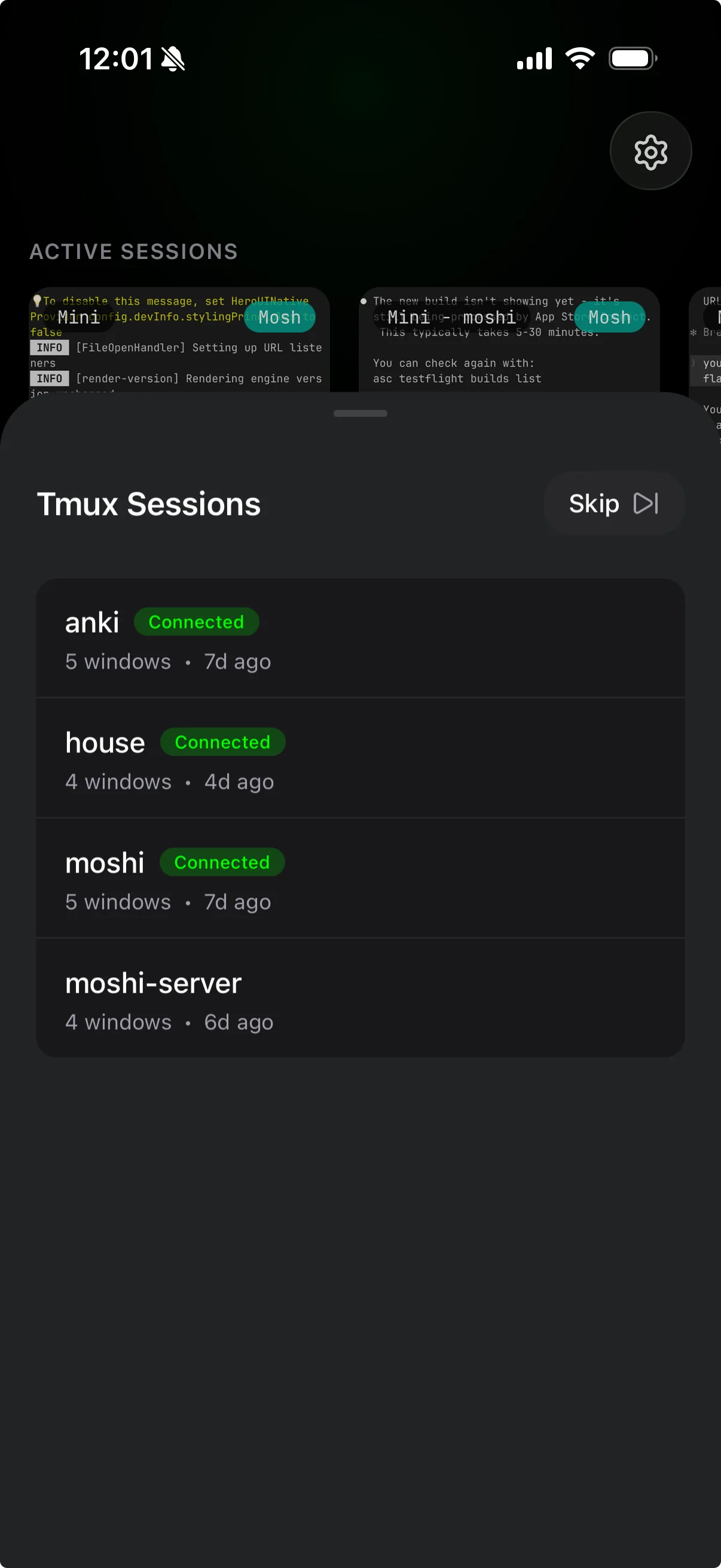
If you connect through the tmux picker, Moshi will automatically enable mouse mode for that session via the CLI, so scrollback gestures work out of the box even if your ~/.tmux.conf doesn't have it set.
If your session has scrollback history from a previous connection, it's all still there — tmux keeps the buffer on the server regardless of whether Mosh disconnects and reconnects.
For the complete tmux + Moshi workflow, see My Daily Moshi Workflow.
Other Workarounds
tmux is the real fix, but for quick one-off commands these can help:
- Pipe long output through
less:cargo build 2>&1 | less - Save output to a file with
tee:npm run build 2>&1 | tee build.log - Search output for specific lines:
make 2>&1 | grep error
Quick Reference
| Situation | Solution |
|---|---|
| Swipe/scroll does nothing in tmux | set -g mouse on in ~/.tmux.conf |
| Using Moshi's tmux picker | Mouse mode enabled automatically |
| Need scrollback without mouse mode | Ctrl+B then [ to enter copy mode |
| Scrolled up, want the live view | Tap the scroll-to-bottom button |
| Scrolling too fast or jumpy in tmux | Rebind WheelUpPane -N — see Scrolling |
| tmux buffer too small | set -g history-limit 50000 in ~/.tmux.conf |
| Quick one-off command | Pipe through less or tee |
Related Articles
- Mosh vs SSH — how the two protocols actually differ, and when to use each
- Fix Mosh Falling Back to SSH on macOS — if the tmux picker never appears, Mosh may be silently falling back to SSH
- Complete Remote Coding Setup — Tailscale + Mosh + tmux, the full stack
- My Daily Moshi Workflow — organizing tmux sessions for AI agents
- Fix Mosh Connection Failed — every Mosh connection pitfall and how to solve it
- Mastering Moshi's Terminal Keyboard — shortcuts for tmux, Ctrl sequences, and more
- Scrolling and scrollback — current app scrollback behavior and tmux copy mode
- tmux — Moshi's durable workspace pattern
Resources
- Moshi — Mobile Terminal for Developers
- mosh — Mobile Shell FAQ — official FAQ addressing scrollback
- tmux Wiki