
SSH Permission Denied? Fix the 10 Most Common Connection Errors
You installed the app, added your server, tapped connect — and nothing happened. Here's how to fix it.
TL;DR: Most SSH failures come down to three things: wrong permissions on your key files, a firewall blocking the port, or the server not running SSH. If you're using Mosh, also check that UDP ports 60000-61000 are open. See the diagnostic flowchart below to jump straight to your error.
Connecting to a remote server should be simple. But SSH has a long history of failing silently, showing cryptic error messages, and refusing to tell you why it won't connect.
If you just set up Moshi and can't reach your server, you're not alone. This guide covers every common failure — from "Permission Denied" to "Connection Refused" — with exact steps to fix each one.
The Quick Fixes (Start Here)
Before diving deep, check these three things. They solve 80% of connection failures:
1. Is SSH running on your server?
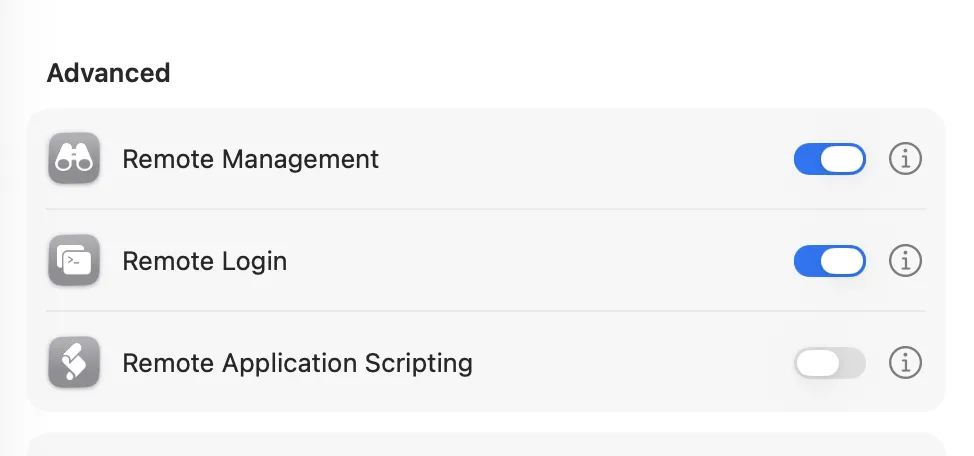
# macOS: System Settings → General → Sharing → Remote Login → Enable
# Linux:
sudo systemctl status sshd
2. Are your key file permissions correct?
chmod 700 ~/.ssh
chmod 600 ~/.ssh/authorized_keys
chmod 600 ~/.ssh/id_ed25519        # your private key
chmod 644 ~/.ssh/id_ed25519.pub    # your public key
3. Is your public key on the server?
# On your server, check:
cat ~/.ssh/authorized_keys
# Your public key should be in there — one long line starting with ssh-ed25519 or ssh-rsa
If those didn't fix it, use the flowchart below to find your error, or keep reading for detailed fixes.
Diagnostic Flowchart
Can't connect at all?
├── "Connection refused"
│   ├── Is SSH running? → Start sshd
│   └── Wrong port? → Check sshd_config
├── "Connection timeout"
│   ├── Wrong IP? → Verify address
│   ├── Firewall blocking? → Open port 22
│   └── Different network? → Use Tailscale/VPN
└── "Permission denied"
    ├── Wrong key? → Check authorized_keys
    ├── Wrong permissions? → chmod 700/600
    ├── Wrong user? → Check username
    └── Too many keys? → Assign specific key in Moshi

SSH works but Mosh doesn't?
├── "Nothing received on UDP port"
│   └── Open UDP 60000-61000 in firewall
├── "mosh-server not found"
│   └── Install mosh or specify --server path
└── "Needs UTF-8 locale"
    └── Run locale-gen en_US.UTF-8

Connects but keeps dropping?
├── Plain SSH? → Switch to Mosh (native in Moshi)
├── Mobile network? → Use Mosh + Tailscale
└── Still dropping? → Use Mosh + tmux for persistence
Permission Denied (publickey)
This is the single most common SSH error. You'll see something like:
Permission denied (publickey).
or
Permission denied (publickey,keyboard-interactive).
Wrong key or key not on the server
The most likely cause: the public key you're using doesn't match what's in ~/.ssh/authorized_keys on the server.
To fix this, get your public key onto the server. In Moshi, go to Settings → Keys, tap your key to copy the public key to your clipboard, then add it to the server.
From your Mac, you can use ssh-copy-id:
ssh-copy-id -i ~/.ssh/id_ed25519.pub user@your-server
Or add it manually on the server:
# Paste your public key into authorized_keys:
echo "PASTE_YOUR_KEY_HERE" >> ~/.ssh/authorized_keys
chmod 600 ~/.ssh/authorized_keys
File permissions are wrong (the silent killer)
SSH is extremely strict about file permissions. If your files are too permissive, SSH silently refuses to use them — no error, no warning in basic output.
| Path | Required Permission | Command |
|---|---|---|
~/.ssh/ | 700 (owner only) | chmod 700 ~/.ssh |
~/.ssh/authorized_keys | 600 (owner only) | chmod 600 ~/.ssh/authorized_keys |
| Private key | 600 (owner only) | chmod 600 ~/.ssh/id_ed25519 |
| Public key | 644 (readable) | chmod 644 ~/.ssh/id_ed25519.pub |
| Home directory | Not group-writable | chmod go-w ~ |
Why is SSH so strict? It's protecting you. If anyone else on the system could read your private key or write to your authorized_keys, an attacker could impersonate you. SSH would rather refuse to connect than use a potentially compromised key.
Wrong username
SSH uses your local username by default. If your server username is different, you need to specify it:
ssh joel@your-server # not just: ssh your-server
In Moshi, make sure the Username field matches your account on the remote server.
Password authentication is disabled
Some servers only accept keys — no passwords. Check the server config:
# On the server:
grep PasswordAuthentication /etc/ssh/sshd_config
# If it says "no", you must use key-based auth
Too many keys loaded
If you have many SSH keys (common with 1Password or other SSH agents), the client may try all of them before the server's MaxAuthTries limit (default: 6).
Received disconnect from server: Too many authentication failures
In Moshi, this isn't usually an issue — you assign a specific key to each connection in the app. But if you're also connecting from your Mac and hitting this, add this to your Mac's ~/.ssh/config:
Host your-server
    IdentityFile ~/.ssh/id_ed25519
    IdentitiesOnly yes
Connection Refused
ssh: connect to host 192.168.1.100 port 22: Connection refused
This means the server actively rejected your connection. The network path works, but nothing is listening on port 22.
SSH server isn't running
On macOS: System Settings → General → Sharing → Remote Login → Enable
On Linux:
sudo systemctl start sshd
sudo systemctl enable sshd    # start on boot
SSH is on a non-standard port
Some servers run SSH on a different port for security:
# Check what port SSH is listening on:
grep Port /etc/ssh/sshd_config

# Connect to a non-standard port:
ssh -p 2222 user@your-server
In Moshi, set the Port field when adding your server.
Connection Timeout
ssh: connect to host 192.168.1.100 port 22: Operation timed out
No response at all. The packets are being dropped somewhere.
Server is unreachable
- Wrong IP address: Double-check the IP. If using a hostname, make sure DNS resolves it.
- Server is down: Can you reach it from another device on the same network?
- Different network: If your server is at home and you're on cellular, you need a VPN like Tailscale to reach it. See the complete remote setup guide.
Firewall is blocking port 22
This is extremely common, especially on:
- Cloud instances (AWS, GCP, Azure) — check your security group inbound rules
- Corporate/school WiFi — many networks block port 22 outbound
- Server-side firewalls —
ufw,iptables,firewalld
For cloud instances, check your security group:
# AWS: Security Group → Inbound Rules → Add Rule:
#   Type: SSH, Port: 22, Source: Your IP (or 0.0.0.0/0 for anywhere)
For server-side firewalls:
# Ubuntu/Debian (ufw):
sudo ufw allow 22/tcp

# CentOS/RHEL (firewalld):
sudo firewall-cmd --add-service=ssh --permanent
sudo firewall-cmd --reload
If outbound port 22 is blocked, run SSH over port 443 (HTTPS port — almost never blocked):
# On the server, edit /etc/ssh/sshd_config:
Port 443

# Then restart:
sudo systemctl restart sshd
Your IP got banned
If you've had failed login attempts, tools like fail2ban may have blocked your IP.
# On the server, check if you're banned:
sudo fail2ban-client status sshd

# Unban your IP:
sudo fail2ban-client set sshd unbanip YOUR_IP
Host Key Verification Failed
@@@@@@@@@@@@@@@@@@@@@@@@@@@@@@@@@@@@@@@@@@@@@@@@@
@    WARNING: REMOTE HOST IDENTIFICATION HAS CHANGED!     @
@@@@@@@@@@@@@@@@@@@@@@@@@@@@@@@@@@@@@@@@@@@@@@@@@
This scary-looking message means the server's fingerprint doesn't match what you saw last time.
When it's safe to dismiss
- You reinstalled the OS on your server
- You rebuilt a cloud instance (new instance, same IP)
- You changed your server's SSH configuration
Remove the old fingerprint and reconnect:
# Remove the old fingerprint:
ssh-keygen -R your-server-ip

# Then connect again — you'll be asked to accept the new fingerprint
When you should worry
If you didn't change anything about your server and you're on an untrusted network (public WiFi, airport, hotel), this could indicate a man-in-the-middle attack. Verify the server's fingerprint through a separate channel before accepting.
Mosh-Specific Connection Issues
Using Mosh with Moshi? Mosh adds a layer on top of SSH, which means a few extra things can go wrong.
UDP ports blocked (the #1 Mosh issue)
Mosh uses SSH for initial authentication, then switches to UDP ports 60000-61000. Unlike SSH's TCP port 22, these UDP ports are often closed by default.
mosh: Nothing received from server on UDP port 60001.
Open the UDP ports on your server's firewall:
# Ubuntu/Debian:
sudo ufw allow 60000:61000/udp

# CentOS/RHEL:
sudo firewall-cmd --add-port=60000-61000/udp --permanent
sudo firewall-cmd --reload

# AWS Security Group:
# Add inbound rule: Custom UDP, Port range 60000-61000
You can also pin a specific port for easier firewall rules:
# Use a single port instead of the whole range:
mosh -p 60001 user@your-server
If you're behind a VPN like Tailscale or WireGuard, you don't need to worry about this — traffic flows through the VPN tunnel.
mosh-server not found on remote
mosh: Did not find mosh-server startup message
Mosh needs mosh-server installed on the remote machine. Even if it's installed, it might not be in the PATH during non-interactive SSH sessions.
Install mosh on the server, then specify the full path if needed:
# Install mosh on the server:
# macOS:
brew install mosh
# Ubuntu/Debian:
sudo apt install mosh
# CentOS/RHEL:
sudo dnf install mosh

# If installed but not found, specify the path:
mosh --server=/opt/homebrew/bin/mosh-server user@your-server
# or
mosh --server=/usr/local/bin/mosh-server user@your-server
On macOS with Homebrew, the path is usually /opt/homebrew/bin/mosh-server (Apple Silicon) or /usr/local/bin/mosh-server (Intel).
Locale / UTF-8 errors
mosh-server needs a UTF-8 native locale to run.
The server doesn't have a UTF-8 locale configured.
Generate the locale on the server:
# On the server (Linux):
sudo locale-gen en_US.UTF-8
sudo update-locale LANG=en_US.UTF-8

# Or set it in your shell profile:
export LC_ALL=en_US.UTF-8
export LANG=en_US.UTF-8
Shell startup scripts breaking the handshake
If your .bashrc or .zshrc prints output (like a welcome message or echo statement), it can corrupt the MOSH CONNECT handshake message.
Guard any output in your shell profile:
# Only print in interactive sessions:
if [[ $- == *i* ]]; then
    echo "Welcome back!"
fi
SSH Key Types and Compatibility
ed25519 vs RSA
| ed25519 | RSA | |
|---|---|---|
| Recommended | Yes (modern default) | Only for legacy systems |
| Key size | Fixed 256-bit | 2048-4096 bit |
| Speed | Very fast | Slower at 4096-bit |
| Compatibility | OpenSSH 6.5+ (2014) | Universal |
Use ed25519 unless you're connecting to a very old server (pre-2014):
ssh-keygen -t ed25519 -C "[email protected]"
Use RSA if ed25519 isn't supported:
ssh-keygen -t rsa -b 4096 -C "[email protected]"
Key format issues
Modern OpenSSH (7.8+) generates keys in a new format starting with -----BEGIN OPENSSH PRIVATE KEY-----. Some older tools expect the PEM format starting with -----BEGIN RSA PRIVATE KEY-----.
If a tool can't read your key:
# Convert to PEM format:
ssh-keygen -p -m PEM -f ~/.ssh/id_rsa
Note: ed25519 keys are always in OpenSSH format — there's no PEM equivalent.
iOS and macOS Gotchas
iOS kills background SSH connections
When you switch apps or lock your phone, iOS suspends background apps. Plain SSH connections die immediately.
This is the main reason to use Mosh. Mosh's UDP-based protocol reconnects seamlessly when you return to the app. Pair it with tmux for session persistence and you'll never lose your work. See the complete remote setup guide for details.
macOS firewall blocking connections
The built-in macOS firewall can block SSH in some configurations:
System Settings → Network → Firewall → ensure SSH/Terminal is allowed.
Third-party software interference
VPN clients, content filters, and network monitors (Little Snitch, Lulu, etc.) can silently block SSH connections. If you've checked everything else, try temporarily disabling these to isolate the issue.
Too many keys in macOS Keychain
If you also connect from your Mac (not just Moshi), macOS integrates SSH keys with Keychain and may offer too many keys. Add this to your Mac's ~/.ssh/config:
Host *
    IdentitiesOnly yes
    AddKeysToAgent yes
    UseKeychain yes
Using Moshi's Key Management
Moshi stores connection credentials in secure iOS storage and can require Face ID or Touch ID before using them. Here's how to set up keys:
Option 1: Generate a new key pair in Moshi
- Open Moshi → Settings → Keys
- Generate a new ed25519 key pair
- Tap the key to copy the public key to your clipboard
- Use Handoff or AirDrop to get it to your server, or paste it in a separate session:
# On the server:
echo "PASTE_PUBLIC_KEY" >> ~/.ssh/authorized_keys
chmod 600 ~/.ssh/authorized_keys
Option 2: Import an existing key
- Save your private key file to iCloud Drive or the Files app
- In Moshi → Settings → Keys → Import from File
- Select the key file
Option 3: Paste from clipboard
- Copy your private key on your Mac:
cat ~/.ssh/id_ed25519 | pbcopy
- Use Universal Clipboard (Handoff) — it appears on your iPhone automatically
- In Moshi → Settings → Keys → Paste from Clipboard
Security notes
- Private keys are kept in secure iOS credential storage once imported
- Face ID / Touch ID is required to use keys for authentication
- Keys are not included in iCloud backups
- Moshi never transmits your keys to any server (only the public key is sent during SSH handshake)
For the full credential and iCloud-sync model, see Security and sync.
The Easy Path: Tailscale SSH
If you're tired of managing keys, ports, and firewall rules, Tailscale SSH eliminates most of these problems:
- No SSH key management — uses your Tailscale identity
- No port forwarding — works through NAT, firewalls, corporate networks
- No firewall rules — traffic flows through the Tailscale mesh
- Free for personal use (up to 100 devices)
# On your server:
brew install tailscale
sudo tailscale up --ssh

# On your iPhone:
# Install Tailscale from App Store → sign in → done
Then in Moshi, just use your server's Tailscale IP (e.g., 100.64.0.1). No keys to manage, no ports to open.
For mosh, keep normal SSH available on the host too: mosh starts by running mosh-server over SSH, and Tailscale's built-in SSH server is not always a drop-in replacement for OpenSSH command execution. For the full setup guide, see Using Your Mac as a Remote Endless Working Agent and Tailscale.
Still Stuck?
If none of this fixed your issue:
- Test from your Mac first: If
ssh user@your-serverworks from your laptop, the server is fine — the issue is network or app configuration - Enable verbose logging from your Mac:
ssh -vvv user@your-servershows exactly what's happening at each step of the handshake - Check the server logs:
sudo journalctl -u sshd -f(Linux) or Console.app (macOS) - Try password auth temporarily: If key auth fails, temporarily enable
PasswordAuthentication yesinsshd_configto verify the network path works
Related Articles
- Fix Mosh Connection Failed — every Mosh-specific pitfall, including Tailscale SSH incompatibility
- Complete Remote Coding Setup — the full Tailscale + mosh + tmux stack
- Using Your Mac as a Remote Agent — detailed Mac server setup with SSH hardening
- Mastering Moshi's Terminal Keyboard — once you're connected, master the keyboard
- My Daily Moshi Workflow — organize tmux windows for AI agents
- Best iOS Terminal App Comparison — Moshi vs Blink vs Termius
- Moshi vs Termius — the focused 1:1 comparison
- Connections and authentication — current Moshi connection fields, jump hosts, and mosh options
- Security and sync — biometric checks, credential storage, and iCloud sync
- Troubleshooting — live docs for current app-side diagnostics