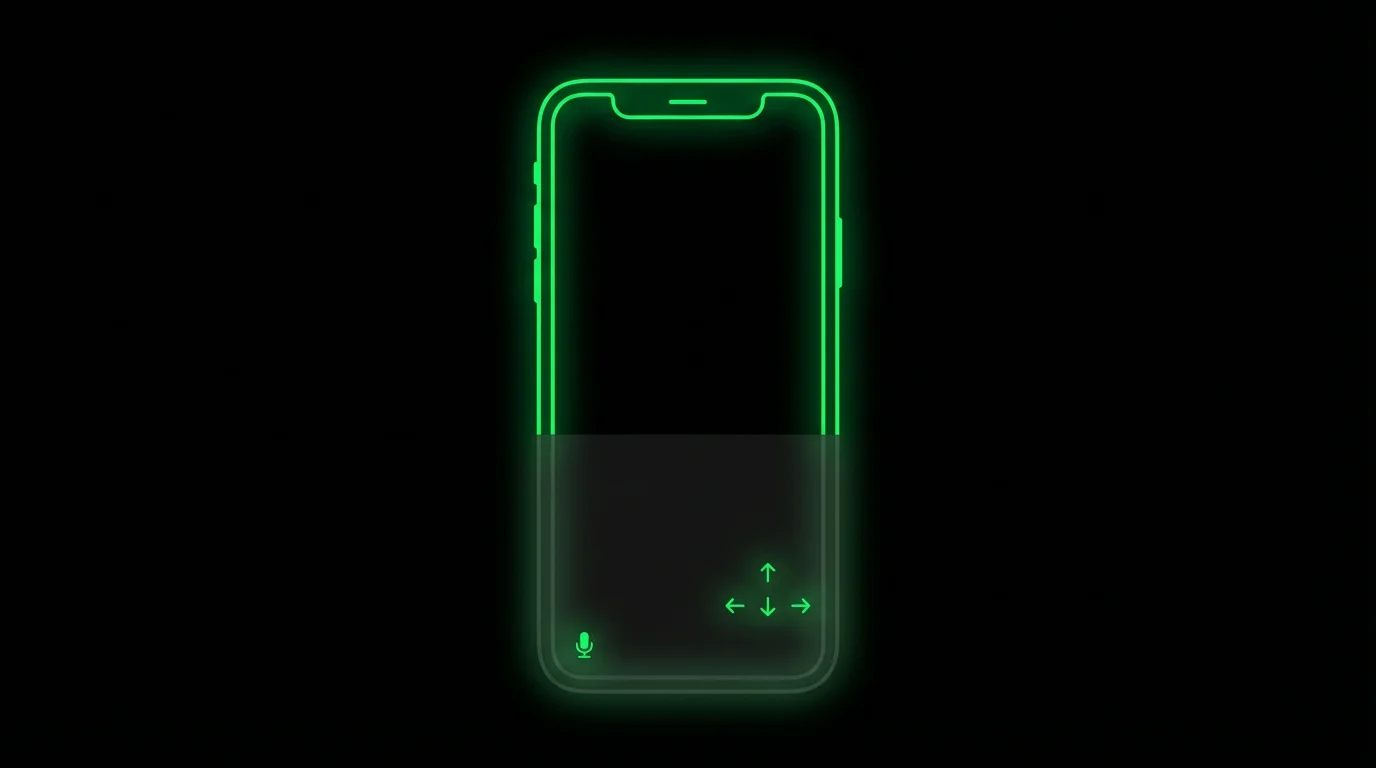
How Moshi completes most tasks without opening the iOS keyboard — because on mobile, the keyboard eats half your screen
TL;DR: The iOS keyboard takes 50% of screen space. Moshi is built to avoid it: inbox actions, voice input, chat mode, image paste, shortcut panels, arrow keys to find commands, and double-tap to send. Most sessions never need the keyboard open.
The Problem
On mobile, every time you open the keyboard, you lose half your screen.
┌────────────────────────┐      ┌────────────────────────┐
│                        │      │                        │
│                        │      │    Visible terminal    │
│    Visible terminal    │      │    (only 50%)          │
│    (100%)              │      │                        │
│                        │      ├────────────────────────┤
│                        │      │                        │
│                        │      │    iOS Keyboard        │
│                        │      │    (50%)               │
│                        │      │                        │
└────────────────────────┘      └────────────────────────┘
    Keyboard hidden              Keyboard visible
For AI agent workflows, you're mostly:
- Reading output
- Approving/rejecting actions
- Running commands you've run before
- Switching tmux windows
None of these need a full keyboard. Moshi is designed for this.
The Keyboard-Free Workflow
Here's my typical flow when I get an inbox item, Live Activity, or push notification from an agent:
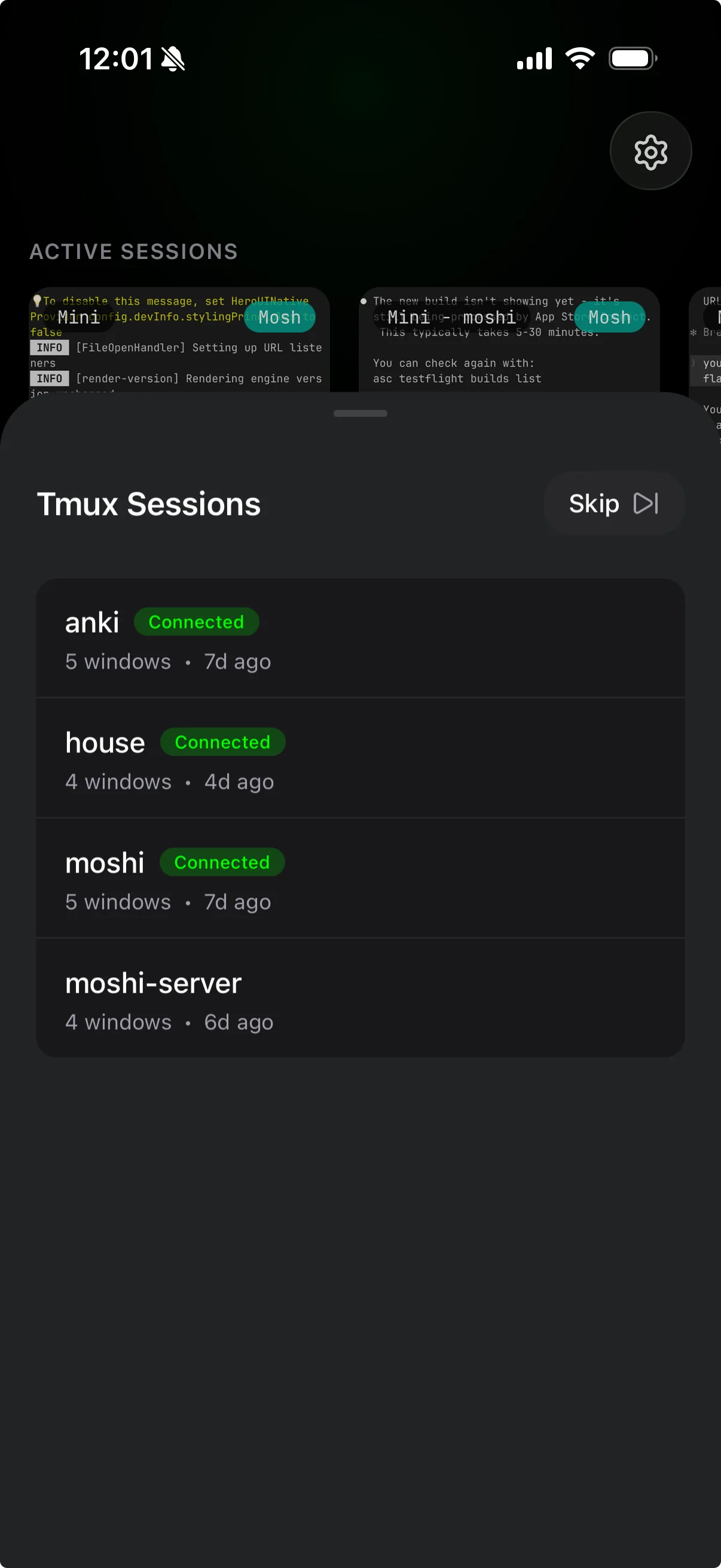
1. Reconnect to tmux
Open Moshi → tap your server → select the tmux session from the picker.
Zero typing.
2. Read the Agent Output
Full screen. No keyboard blocking the view.
The agent is waiting for approval:
Need permission to run: npm install bcrypt
[y/n]
3. Voice Input
Long-press the keyboard button → say "yes" → release.
Pick the speech engine that fits the moment: Apple on-device for fast private prompts, local Whisper for offline technical dictation, or cloud transcription when accuracy matters more than quota. "yes" appears. Done.
Zero keyboard.
4. Send with Double-Tap
Double-tap the keyboard button → sends Enter.
The command runs. Full screen stays visible.
5. Paste an Image Without a File Dance
When the agent needs to see something, use the image button from Moshi's toolbar or chat mode. Paste a screenshot, photo, or clipboard image and Moshi sends it as a short URL inside the prompt.
No scp. No temporary host file. No keyboard.
Alternative: Shortcut Panels
Sometimes you need a command, not just "yes".
Long-press Ctrl → opens the shortcuts panel.
Claude Tab
Need to clear context or resume a session?
| Tap | Sends |
|---|---|
/clear | /clear + Enter |
/resume | /resume + Enter |
/compact | /compact + Enter |
One tap. Full command. No keyboard.
Ctrl Tab
Need to interrupt or exit?
| Tap | Sends |
|---|---|
C | Ctrl+C |
D | Ctrl+D |
Z | Ctrl+Z |
L | Ctrl+L (clear screen) |
Tmux Tab
Need to switch windows or create new ones?
| Tap | Sends |
|---|---|
1-9 | Ctrl+B [number] |
c | Ctrl+B c (new window) |
n | Ctrl+B n (next) |
d | Ctrl+B d (detach) |
Arrow Keys for Command History
Need to re-run a recent command? Use the arrow keys on the toolbar.
Up arrow → previous command Up arrow → previous command Up arrow → found it
Double-tap keyboard → Enter
Three taps and a double-tap. Keyboard never opened.
The Complete Keyboard-Free Session
Let's trace a full interaction:
- Inbox or push notification: "Window 1: Need approval for git push"
- Open Moshi → tap server → select session
- Read: See the diff Claude is about to push
- Long-press Ctrl → Ctrl tab → tap
Lto clear screen (optional) - Voice: "yes"
- Double-tap: Send
- Watch: Push completes
- Long-press Ctrl → Tmux tab → tap
dto detach - Close app
Total keyboard time: zero.
Tappable Links
Terminal URLs are tappable in Moshi. When your dev server outputs:
  ➜  Local:   http://localhost:5173/
  ➜  Network: http://100.64.0.1:5173/
Tap the network URL → Safari opens → preview your app. Need just the address, not a jump to Safari? Long-press the link and the iOS menu adds Copy Link alongside Open — and drag the selection handles to grab any text in the buffer.
Configure servers to bind to network interfaces (--host flag in Vite) and add this to CLAUDE.md:
When starting dev servers, use --host and show me the network URL so I can tap to preview.
Another interaction that needs zero keyboard.
Inbox and Watch Actions
With moshi-hook, many agent decisions do not require opening the terminal at all. Approvals, questions, turn completions, and usage windows land in Moshi's inbox; Live Activities keep the active turn visible; Apple Watch can show the same inbox and usage rings.
Use the terminal when you need full context. Use the inbox or watch when the decision is small. See Moshi Agent Hooks and Apple Watch.
When You Do Need the Keyboard
Sometimes typing is unavoidable:
- Writing new code inline
- Entering paths the agent doesn't know
- Custom prompts
Tap the keyboard button once → keyboard appears → type → tap again to hide.
But for 80% of agent interactions, shortcuts + voice + arrows is enough.
Setup
Enable Voice
Settings -> Speech -> choose your speech engine, then enable the long-press dictation gesture under input settings.
Learn the Double-Tap
The keyboard toggle button:
| Action | Result |
|---|---|
| Single tap | Toggle keyboard visibility |
| Double tap | Send Enter |
| Long press | Start voice dictation |
Practice until double-tap is muscle memory.
Memorize the Shortcuts
Three panels, few shortcuts each:
- Tmux:
1-9,c,n,d - Claude:
/clear,/resume - Ctrl:
C,D,L
That covers 90% of usage.
Turn On Chat Mode
For natural-language agent prompts, enable chat mode. It opens a composer where dictated text, typed edits, pasted text, and image attachments can be reviewed before anything reaches the terminal.
See Voice and dictation and Image paste.
Why This Matters
Mobile terminal apps are usually shrunken desktop experiences. Small keys. Awkward modifier access. Constantly fighting the keyboard.
Moshi inverts this: the keyboard is a fallback, not the default.
The result:
- More screen for reading output
- Faster common operations
- Less typo-prone input
- Works one-handed
- Cleaner visual prompts when an image explains the problem faster than text
Quick Reference
Keyboard Button (right side of toolbar)
| Action | Result |
|---|---|
| Tap | Toggle keyboard |
| Double tap | Enter |
| Long press | Voice input |
Shortcuts Panel (long-press Ctrl)
- Tmux: c, n, d, 1-9
- Claude: /clear, /resume, /compact, /help
- Ctrl: C, D, Z, L, A, E, R, W
Toolbar (always visible)
- Arrow keys: Command history, cursor movement
- Esc: Cancel, exit modes
- Ctrl/Alt: Modifier keys