Chat View turns a live Claude Code or Codex session into a native chat — without leaving your real terminal
TL;DR: Turn on Chat View in Moshi to render a live Claude Code or Codex session as a native chat. Tool calls, plans, and approvals become tappable cards, with voice input, image paste, and end-of-turn recaps. It's the same SSH/mosh session running on your own machine — close the chat and you're back in the raw terminal. Chat View is a Pro feature with a few free uses to try.
Driving an AI coding agent from your phone usually means staring at a TUI: a dense wall of text built for a desktop monitor, full of box-drawing characters and ANSI colors that wrap badly on a six-inch screen. It works, but reading a plan or finding the approval prompt in scrollback with your thumb is a chore.
Chat View fixes the presentation without changing the connection. Moshi reads your live Claude Code or Codex session and re-renders it as a chat — your prompts and the agent's replies as messages, with the structured parts pulled out into cards. Underneath, it's the exact same session running on your machine over SSH or mosh.
What Chat View is
Chat View is a lens over a running agent session, not a separate app or a relay. There's no second connection, no copy of your code sent anywhere — Moshi simply presents the session you already have in a format that fits a phone.
Open a Claude Code or Codex session, tap the chat icon, and the terminal becomes a conversation. Tap it again to drop back into the full TUI. Everything you'd expect from the terminal keeps working: mosh holds the session across network changes, tmux keeps it running when you disconnect, and the Agents feed and push notifications still fire when the agent needs you.
What you see
- Messages — your prompts and the agent's replies as chat bubbles, the way a phone expects.
- Tool cards — each tool call (file edits, shell commands, grouped tasks) becomes a compact card you can expand, with failures flagged.
- Plan cards — when the agent lays out a plan, it surfaces as its own card instead of scrolling past.
- Question and approval cards — when Claude or Codex needs a decision, you get Approve / Deny right in the thread. No hunting for the
y/nprompt buried in output. - Images — screenshots and diagrams render inline.
- Live status — a header shows Thinking…, Working…, Idle, or how long the last turn took, plus a scroll-to-bottom button to stay pinned to the latest.
Voice, images, and quick sends
Hold the microphone and dictate your next prompt straight into the chat — on-device or cloud engines both work, so technical terms and file paths come through cleanly. Paste or attach a screenshot when the agent needs visual context, and let the end-of-turn recap summarize what just happened so you don't re-read the whole turn.
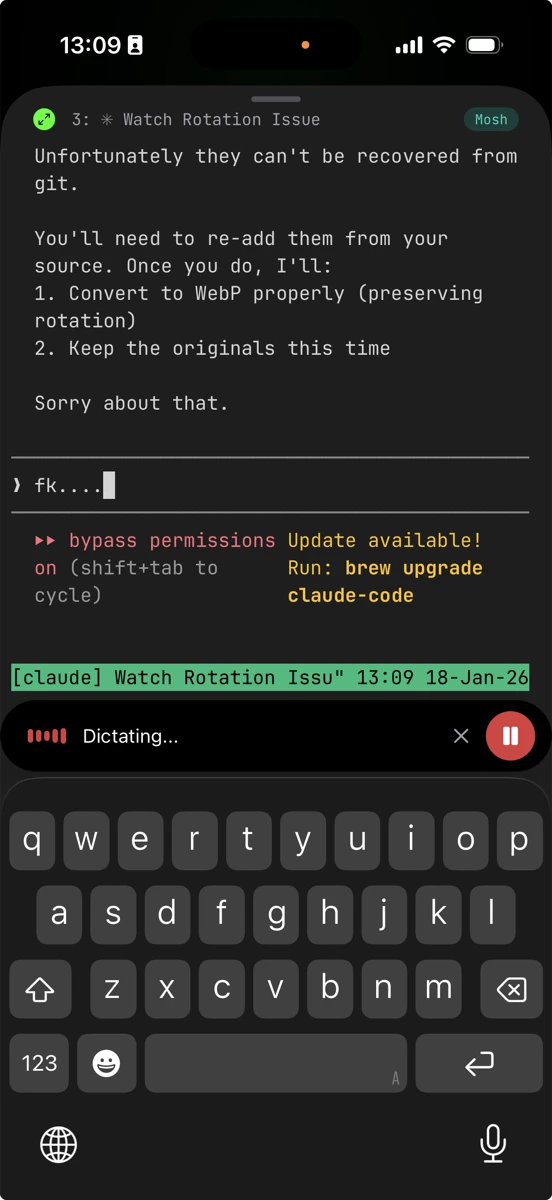
With the on-screen keyboard, Enter sends; with a hardware keyboard, ⌘-Enter sends and a swipe down dismisses the keyboard. For longer, more deliberate instructions, the related Chat Mode composer lets you draft and edit a prompt in a text box before sending instead of typing live into the terminal.
It's still your terminal
The point of Chat View is that you never lose the real thing. Close the chat and you're back in the full TUI for anything the conversation doesn't cover — a raw shell command, a non-agent program, or answering a prompt by hand. Because it's the same underlying session, nothing falls out of sync when you switch views.
That direct, no-relay connection is the same reason mosh matters here: your session survives WiFi-to-cellular handoffs and phone sleep, so an agent that finishes while your phone is in your pocket is one tap away — in chat or in the terminal.
When to use Chat View
- Reach for chat when you're driving Claude Code or Codex on the go: approving tool calls, reviewing a plan, firing off a quick voice prompt, or skimming what changed.
- Drop to the terminal for raw shell work, non-agent TUIs, or anything that needs exact keystrokes.
Turn on Chat View
In Moshi, open Settings → Chat Mode and toggle Show as Chat under Chat View. It works with Claude Code, Codex, and eight more agents today (full list in the FAQ below).
One requirement that's easy to miss: run the agent inside tmux or herdr, not straight in a plain shell. Chat View sends your prompts back through the multiplexer, so an agent launched directly in a bare shell stays terminal-only — the toolbar keeps showing the generic chat icon no matter how the settings are configured. Start the multiplexer session first, run Claude Code or Codex inside it, then tap the chat icon to switch in — and back out — anytime.
Chat View is a Pro feature. Without Pro you get a handful of free uses to try it before deciding; see Licensing and sharing for how one Pro license covers your iPhone, iPad, and Apple Watch.
FAQ
Which agents work with Chat View?
Seventeen today: Claude Code, Codex, OpenCode, Cursor, Antigravity, Kimi, Grok, Pi, OMP, OmO, Hermes, Qoder, Factory Droid, GitHub Copilot, Amp, Devin, and jcode. Gemini and Qwen Code get the Agents feed and notifications, but not Chat View yet. See the supported agents list.
Do I need tmux to use Chat View?
Yes — tmux or herdr. Chat View relays your prompts into the live session through the multiplexer, so an agent started in a plain shell can't be opened as a chat. If hooks and Pro are fine but the chat icon never turns into the agent's icon, this is almost always why.
Does Chat View send my code to a server?
No. It's the same direct SSH/mosh session to your own machine — Moshi only re-renders the live session on the device. Nothing extra leaves your host.
Can I still use the normal terminal?
Yes. Chat View is a toggle on top of the real session — close the chat to return to the full TUI at any time.
Can I approve agent prompts from the chat?
Yes. Questions and approvals appear as cards with Approve and Deny inline, so you don't have to find the prompt in scrollback.
Does voice input work in chat?
Yes — hold the mic to dictate with on-device or cloud engines. See Voice input.
Is Chat View free?
It's a Pro feature with a limited number of free uses so you can try it first.
Related Articles
- Best iOS Terminal App for AI Coding Agents — how Moshi compares for agent workflows
- Moshi vs. ADEs — T3 Code, Orca, Paseo, Codex and Claude compared, DMG sizes included
- Moshi with Claude Code — the end-to-end Claude Code playbook
- Moshi Agent Hooks — the Agents feed, Live Activities, and Apple Watch
- Bye Bye Keyboard — voice-first prompting on the phone
- My Daily Moshi Workflow — organizing tmux windows for AI agents
Resources
- Moshi — Mobile Terminal for AI Coding Agents
- Voice input — on-device and cloud dictation engines
- Image paste — send screenshots to agents