
Moshi with an always-on Mac
Turn a Mac you already own into a 24/7 agent host you reach from anywhere — keep it awake, expose it safely over Tailscale, run mosh and the hook daemon as services, and watch it from the menu bar.
A Mac mini in a closet, an old MacBook on a shelf, or the iMac on your desk — any of them can become a machine that runs coding agents around the clock, reachable from your phone wherever you are. The work is mostly one-time: stop it from sleeping, make it reachable without opening ports, and run the pieces Moshi needs as background services. Do it once and you have a host that's always there when an idea strikes.
This is the "endless agent" setup. The goal is a host you never have to physically touch: it stays awake, stays reachable, and re-announces itself to Moshi after reboots and network changes — all on its own.
What you'll learn
- Keep a Mac awake and working with the lid closed
- Reach it from anywhere without port-forwarding, using Tailscale
- Run SSH, mosh, and the hook daemon as durable services
- Watch sessions and approvals from the native menu bar app
- Survive reboots and power loss gracefully
Step 1 — Keep it awake
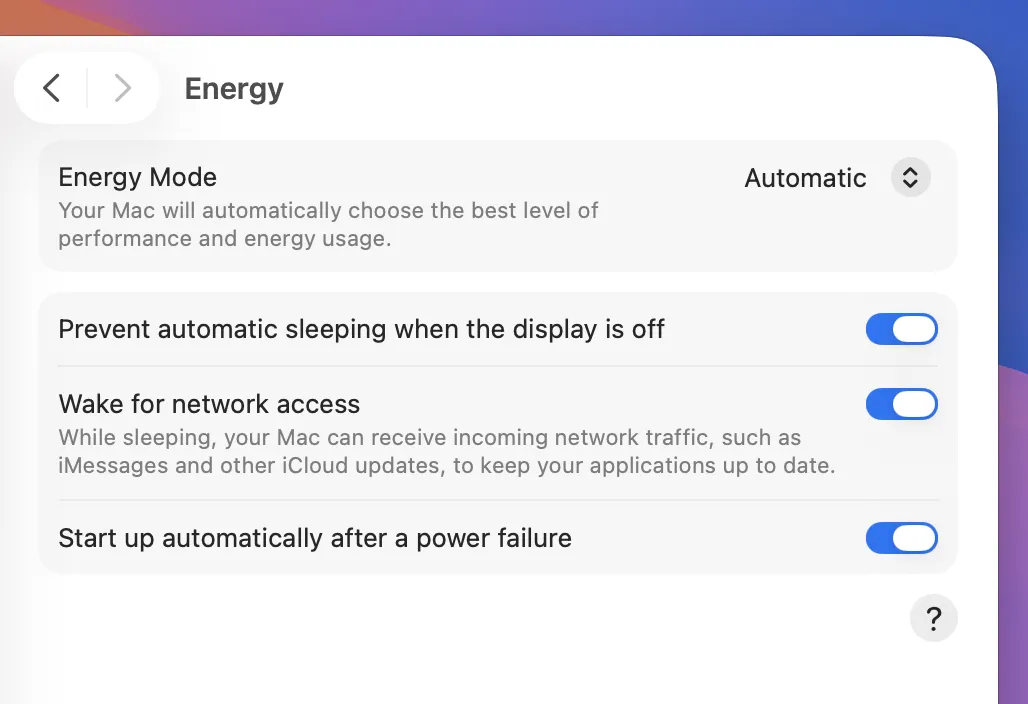
A sleeping Mac can't run agents. Two layers keep it working.
Power settings. Tell macOS to stay awake on AC power and to wake/restart automatically:
# never sleep on power; keep disks spinning$sudo pmset -c sleep 0 disablesleep 1# wake back up after a power outage$sudo pmset -c autorestart 1
Closed-lid operation. A laptop normally sleeps when you close the lid. To run headless with the lid shut, either keep it on AC with an external display historically attached, or hold sleep off with caffeinate as a service:
# keep the system awake indefinitely (run via launchd, below)$caffeinate -dimsu
Macs ship with Power Nap and automatic updates that can reboot the machine. Decide deliberately: enable auto-restart so it comes back after a reboot, and consider disabling unattended OS upgrades so an update doesn't take your host offline mid-run.
Step 2 — Make it reachable with Tailscale
A home Mac usually has no public IP and sits behind NAT. Rather than forward ports, put it on a Tailscale tailnet — a private network where every device gets a stable address reachable from anywhere, with no inbound firewall holes.
$brew install tailscale$sudo tailscale up$tailscale ip -4# use this 100.x.y.z address as the host in Moshi
Install Tailscale on your phone too, sign into the same tailnet, and Moshi can reach the Mac by its tailnet address whether you're on home Wi-Fi or cellular across the country.

Step 3 — Enable SSH and install mosh
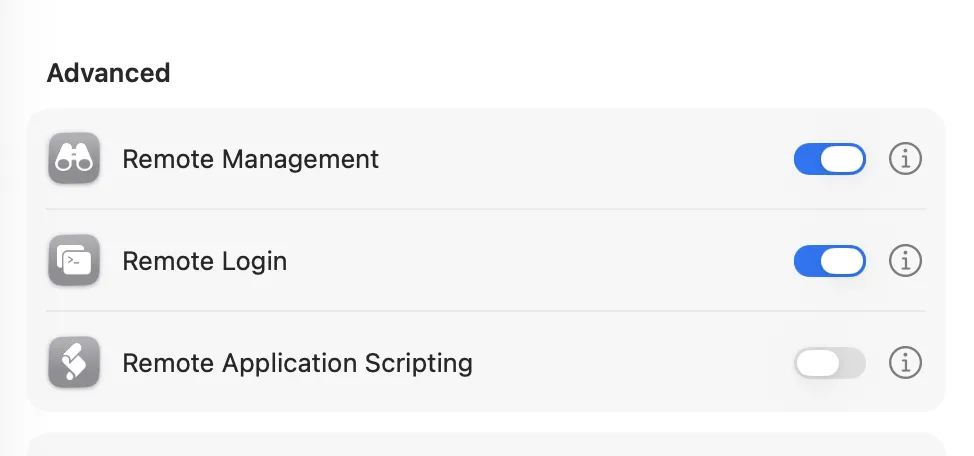
Turn on Remote Login and install mosh so connections survive the Mac sleeping briefly, your phone roaming, and signal drops:
# enable SSH (Remote Login)$sudo systemsetup -setremotelogin on$brew install mosh tmux
Add your Moshi-generated public key to ~/.ssh/authorized_keys and connect with key auth. The connection details are in Connections; if mosh ever fails to start, this article covers the common macOS causes.
Step 4 — Run the hook daemon as a service
Install moshi-hook and make sure it stays running across logins and reboots so approvals always reach your phone:
$curl -fsSL https://getmoshi.app/install.sh | sh$moshi-hook status
The daemon keeps a WebSocket to Moshi; run it under launchd (or let the installer set it up) so it relaunches automatically. Combined with auto-restart, a power blip leads to a Mac that boots, reconnects to the tailnet, and re-announces itself to Moshi with no intervention. Details in Hooks.
For agents to survive a dropped connection, they still need to run inside tmux — sleep-resistance at the OS level doesn't replace a durable session. See Moshi with tmux.
Step 5 — Watch it from the menu bar
The native macOS menu bar app is a thin client to the same local moshi-hook daemon. When you are at the Mac, it shows live sessions and pending approvals right in the menu bar — a quick local view that complements driving the same host from your phone.
A reboot-proof checklist
Power-cycle the Mac and confirm, unattended, that it:
- Boots back up —
pmset -g | grep autorestartshows1. - Rejoins the tailnet —
tailscale statusshows it online. - Accepts SSH — connect from Moshi over the tailnet address.
- Reconnects the daemon —
moshi-hook statusshows the gateway connected. - Stays awake —
pmset -g assertionsshows sleep prevented.
If all five pass after an unplug/replug, you have a genuinely hands-off host.
Troubleshooting
It sleeps anyway
Check pmset -g assertions — something may be allowing sleep. Confirm disablesleep 1 is set on AC, and that your caffeinate service is actually running. Lids closed without AC power will still sleep.
Can't reach it away from home
Almost always Tailscale. Verify both devices show online in tailscale status, that you're using the 100.x address (not the LAN IP), and that the Mac didn't drop off the tailnet after a reboot.
Approvals stop after a reboot
The daemon didn't relaunch. Re-run the installer to (re)register the launchd service, then confirm moshi-hook status shows connected.
Where to go next
- Moshi with Claude Code — what to run on your new host
- Running a fleet of agents — many agents on one always-on machine
- Moshi with Tailscale — Easy Pair over the tailnet and the Tailscale SSH fork
- Endless agent setup — the companion article