Zellij
Use Zellij as the durable workspace behind Moshi — detection, session picker, tab and pane shortcuts, and mobile-friendly layout tips.
Zellij is a fully supported alternative to tmux. Moshi detects it on connect, lists sessions in the picker, and ships a dedicated shortcut panel with a tab quick-access row. The whole remote-control bridge — approvals, question answering, image paste, tap-to-open straight from an agent event — works the same as on tmux and Herdr. The gaps are the navigation extras: no moshi DIR launcher, no Jump To tree, no deep links, and no configurable prefix. See Multiplexers for the full matrix.
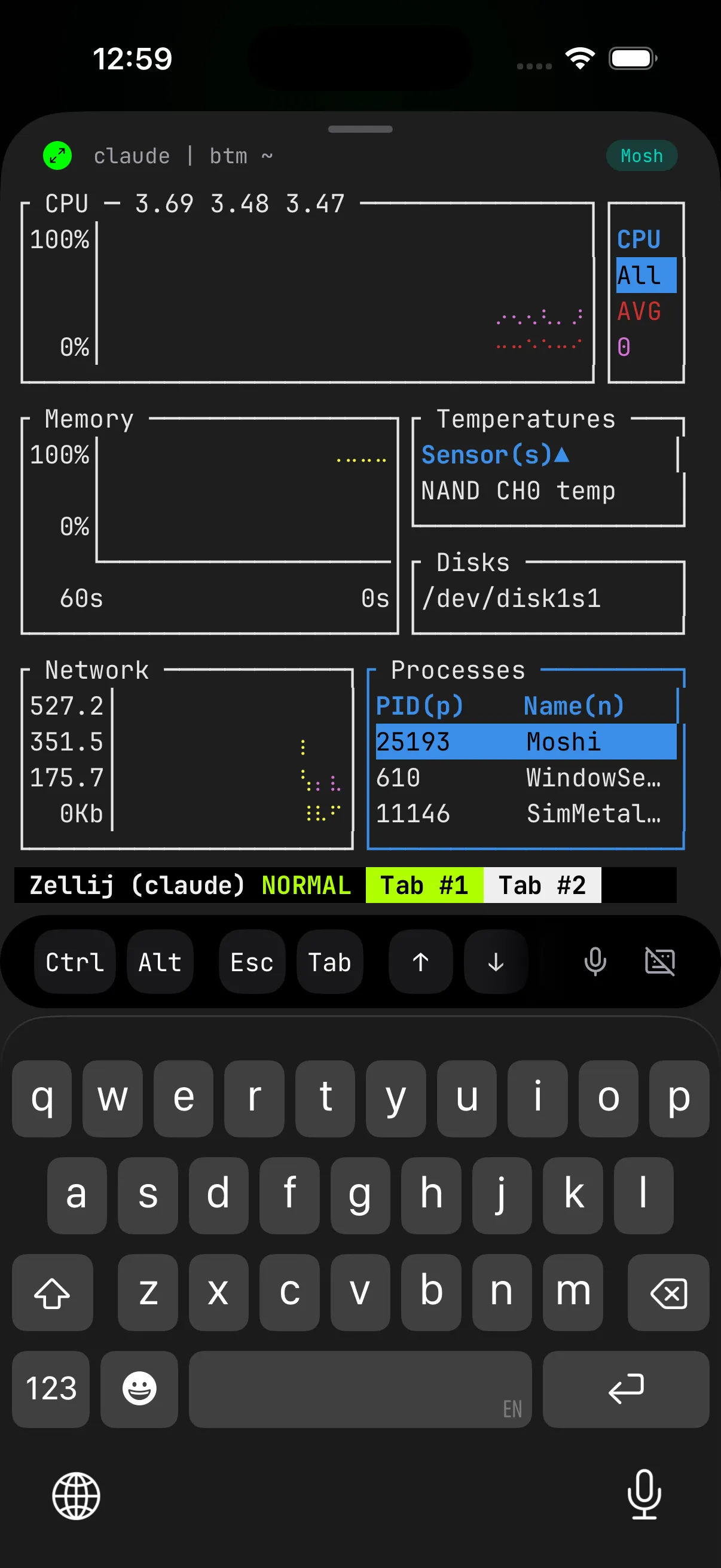
Start or attach
Start a session the first time:
$zellij --session moshi
Reattach later from any new SSH or mosh connection:
$zellij attach moshi
If you want attach-or-create in one shot:
$zellij attach --create moshi
When Moshi connects to a host that already has Zellij sessions, the session picker lists them under a Zellij tab. Tapping one attaches; tapping Skip drops you into a plain login shell.
Agent workflow
Inside Zellij, start your agent normally:
$cd ~/projects/app$claude$codex
Zellij keeps the shell, working directory, and agent process alive when Moshi reconnects. moshi-hook detects $ZELLIJ and tags approvals and turn-completion notifications with the right session/pane metadata so the Inbox can route you back to the same tab.
Tabs and panes
Zellij organizes work into tabs (top-level workspaces) and panes (splits inside a tab). On phone screens, one-tab-per-task is usually easier to control than dense pane grids.
Common Zellij keybinds (default mode):
The Zellij shortcut panel in Moshi pre-binds the most common ones, and the tab quick-access row lets you jump straight to numbered tabs without typing the chord.
Shortcut panel notes
- The tab quick-access row sends
Ctrl-T+ the tab number. Numbers 1–9 work as-is; 10 and above rely on Zellij's input mode timing and may require a custom binding in your Zellij config. - If you do not use Zellij tab numbers and want the row gone, Settings → Shortcuts → Zellij has a Hide tab selector toggle.
- The panel tab itself only appears in the shortcuts panel when you actually have Zellij installed on a recently connected host — Moshi auto-enables it the first time it sees Zellij.
Mobile-friendly tips
- Prefer tabs over many small panes — chord-based pane navigation is fiddly on a touchscreen.
- Name tabs so they're easy to identify (
Ctrl-T rto rename in default mode). - Increase the scrollback buffer if you rely on output recall; Zellij scrolling is per-pane.
- Pair Zellij with moshi-hook so approvals and turn completion reach the Moshi inbox.
When Zellij is not needed
For short commands and one-shot SSH work, Moshi is fine without Zellij. Anything long-running — agents, builds, dev servers — belongs inside a multiplexer so a network drop or a backgrounded app doesn't kill the work.
Troubleshooting
Moshi doesn't detect Zellij
The most common cause is that zellij isn't on the non-interactive SSH PATH. Moshi runs detection over a non-login, non-interactive shell, which often skips ~/.bashrc, ~/.profile, or ~/.zshrc, so directories like ~/.cargo/bin or ~/.local/bin that hold the Zellij binary may be missing.
Check what the SSH session actually sees:
$ssh <host> 'echo PATH=$PATH; command -v zellij'
If command -v zellij prints nothing, either symlink the binary into a directory already on PATH (for example /usr/local/bin) or extend the non-interactive PATH in ~/.ssh/environment or your shell's non-interactive rc file.
Sessions list is empty but Zellij is installed
zellij list-sessions only returns running sessions. If no session is currently active on the host, the picker correctly shows none. Start one with zellij --session <name> and reconnect.
Tab quick-access jumps past the intended number
Zellij's Ctrl-T tab mode exits after the first key, so the digits 10–20 in the quick-access row depend on a slightly different binding. If those don't work for you, the safest workaround is to stick to tabs 1–9 for keypad-style jumps and use normal tab navigation for the rest.